Introduction

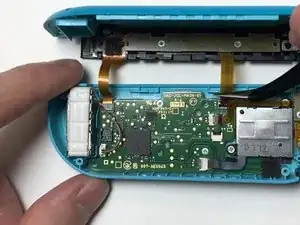
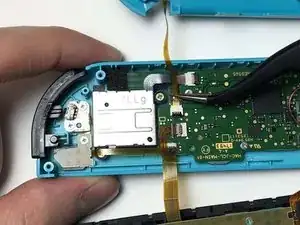
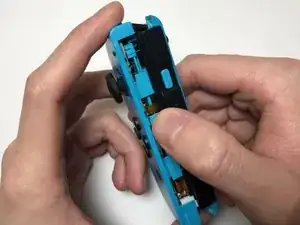
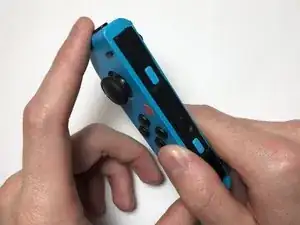
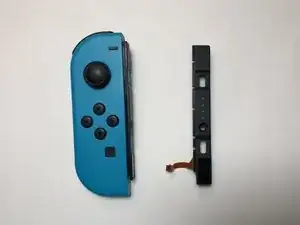
Un rail de chargement cassé entraînera une incapacité à se connecter directement à la console Nintendo Switch ou une incapacité à charger la Joy-Con. Ce tutoriel vous montre comment remplacer le rail de chargement sur la manette JoyCon Switch gauche.

Avant d'utiliser ce tutoriel, vérifiez les broches tordues potentielles sur le rail de chargement, qui peuvent être pliées en arrière. Si possible, testez si le Joy-Con peut être chargé à partir d'une source externe ou vérifiez si le problème vient réellement du rail du capteur sur la console Nintendo Switch.

Si le problème vient du rail du capteur Nintendo Switch, suivez ce tutoriel : Remplacement du rail du Joy-Con gauche de la Nintendo Switch

  1. g4PWqBPqfcjppyGm
    g4PWqBPqfcjppyGm
    iYbDvoUOFTY2CCqG
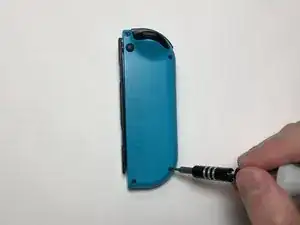
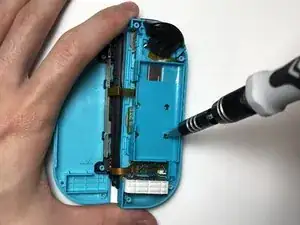
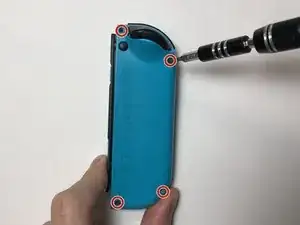
    • Utilisez le tournevis Tri-point Y00 pour retirer les quatre vis de 6 mm à l'arrière du Joy-Con.

  2. iSpjOFpFEkIkLVpB
    iSpjOFpFEkIkLVpB
    5lQVnarIVbKiOJps
    dac4ubPId2MBfFFB
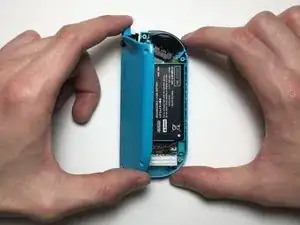
    • Insérez le médiator dans le bas de la JoyCon, puis déplacez-le vers les boutons L et ZL.

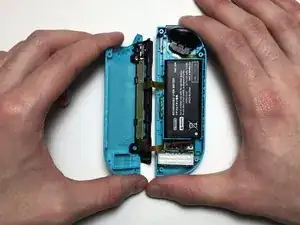
    • Soulevez la coque arrière de la Joy-Con et mettez-la de côté.

    • Soyez prudent lorsque vous retirez la coque arrière, car elle est connectée à deux nappes par le rail de chargement et la carte mère. L'appareil peut être endommagé s'il est séparé en deux.

  3. pHjMtMTIOKSHhqF2
    pHjMtMTIOKSHhqF2
    x5hMXlwnNDvPyNax
    fO1rnSKTLHkZ1t5T
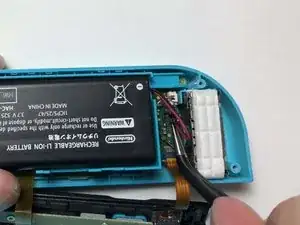
    • Insérez une spatule (spudger) ou un outil de levier sous les fils de la batterie et retirez délicatement la fiche de la batterie de sa prise sur la carte mère.

    • Une fois la fiche de la batterie retirée de la prise, soulevez la batterie du châssis central.

    • Une spatule est recommandée pour cette étape si vous en avez une. Si ce n'est pas le cas, utilisez un outil anti-décharge électrostatique (ESD).

  4. WGTwvnsOLGixZwnR
    WGTwvnsOLGixZwnR
    ecJFHgvW2Mq3sjki
    jrTtNWS5EVv2qqDX
    • Dévissez les trois vis dorées cruciformes #000 de 3 mm qui maintiennent le châssis central en place.

    • Soulevez le châssis central de la carte mère et mettez-le de côté.

  5. ZkDew1pKOfQnUGdx
    ZkDew1pKOfQnUGdx
    JGntP2qcoraHEMKk
    EXWFmOIELqlxCVlv
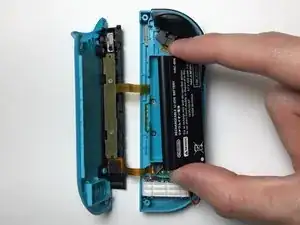
    • Déverrouillez le connecteur ZIF qui fixe la nappe du châssis central à la carte mère.

    • Utilisez une pincette pour retirer délicatement la nappe du connecteur ZIF.

    This step (disconnecting the midframe cable) is not strictly necessary, but if you don’t do it the frame can get in the way during reassembly.

    Guy Bolton King -
  6. M3YgTmKEVA2VEGCl
    M3YgTmKEVA2VEGCl
    WvdQKhHvNh6Nvser
    qa4q1RGVnwR2mPnR
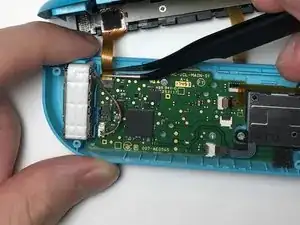
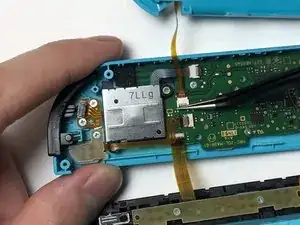
    • Déverrouillez les deux connecteurs ZIF qui fixent les nappes du rail de chargement à la carte mère.

    • Utilisez une pincette pour retirer délicatement les nappes des connecteurs ZIF.

    How do you unlatch the connections.

    Winston Buentello -
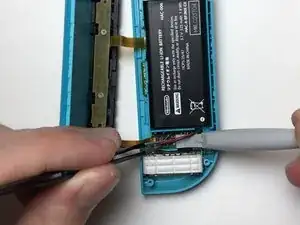
    The top connector has a latch; raising the cable slightly or prising in the slot on the side will release it. There is no latch on the bottom connector; just gently ease the cable out.

    Guy Bolton King -

    The bottom connector absolutely DOES have a ZIF connector, but it's on the opposite side. The tweezers in the second picture are pointing directly at the connector, and it slides up to the left (from the perspective of the picture).

    Rob Hulson -

    That little grey piece on the bottom connector flew off the connector when I put a spudger under it. I can't get it back on regardless of what I've tried, so I'm likely to leave it off rather than risk bending pins. Looks like this little grey piece is wedged between two tuning fork shapes for each pin. If anyone knows the connector name I'd love to take a look at the datasheet as the disconnect/reconnect is making no sense to me.

    Bo Buckley -

    Took me ages to figure out how to put it back on. Just make sure you lift it up to rotate it rather than push it back parallel with the board (like some other connectors). See here for how to replace it if it flies off (and you can find it) :D

    Repositionnement du clapet de connecteur de nappe flexible

    Bo Buckley -

  7. d6bwAuXNmWj13wXo
    d6bwAuXNmWj13wXo
    2NmmwUAdTbhnvWtn
    kyfgACC2CLMRKEig
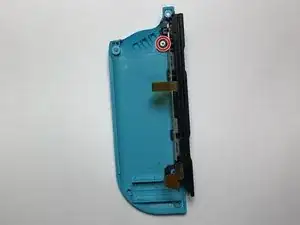
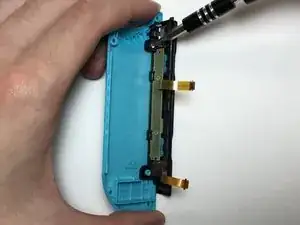
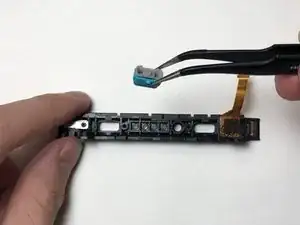
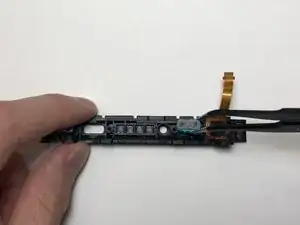
    • Retirez la vis cruciforme #000 de 2 mm qui maintient le rail de chargement sur la coque arrière.

    • Retirez le rail de chargement de la coque arrière.

    • Un morceau de ruban adhésif aide à maintenir le rail de chargement en place sur la coque arrière. Lorsque vous placez le nouveau rail de chargement sur la coque arrière, il est conseillé de remplacer également l'adhésif pour ajouter un support supplémentaire, mais ce n'est pas essentiel.

  8. ZsDBtKRrsst6MZ5H
    ZsDBtKRrsst6MZ5H
    Y3b2MaZNu6UUElDo
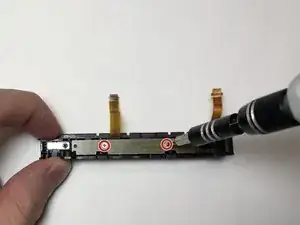
    • Utilisez le tournevis cruciforme #000 pour retirer les deux vis de 3 mm au centre du PCB.

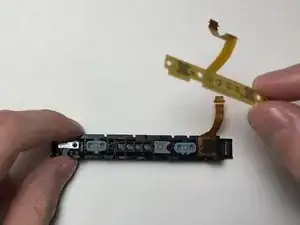
    • Retirez le PCB du rail de chargement.

  9. WnUkJLfE5gv3kLnP
    WnUkJLfE5gv3kLnP
    jF6vIQxDKfgKrLjP
    JlIPTR4kttFVRTRr
    • Retirez les boutons SL, SR et sync du rail de chargement.

    If the new charging rail does not have the syncing led extenders, you can take them out and transfer them as well.

    Kallon Lewallen -

  10. H5fVSHLQAwwLxSTu
    H5fVSHLQAwwLxSTu
    hhOVYQuYqqZedVtL
    WVskUurKVJonrGqL
    • Placez les boutons SL, SR et de synchronisation dans le nouveau rail de chargement et assurez-vous que les languettes des boutons SL et SR s'insèrent dans leurs rainures respectives.

    • Placez le PCB sur les boutons et fixez-le à l'aide des deux vis dorées cruciformes #000 de 3 mm.

    • Risque d'endommagement de l'appareil. Si les boutons ne sont pas correctement placés dans le rail de charge, continuer à visser le PCB le déformera.

  11. OvLGhdENXXGC1OTP
    OvLGhdENXXGC1OTP
    tTZHSKem5HRdWqAs
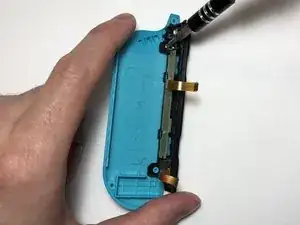
    • Alignez le rail de chargement avec les deux entretoises sur la coque arrière.

    • Fixez le rail sur la coque arrière à l'aide des vis cruciformes #000 de 2 mm.

    There’s only one Phillips screw, the upper one, as removed in step 7.

    Guy Bolton King -

  12. VuYeVdYXdEvPnCWy
    VuYeVdYXdEvPnCWy
    VtI1qQ3cKR1UV1FJ
    CapKl3TBwicMvAtH
    • Utilisez une pincette pour insérer les nappes du rail de chargement dans les connecteurs ZIF de la carte mère.

    • Appuyez sur le loquet de chaque connecteur ZIF pour fixer les nappes en place.

    Had a pretty hard time reconnecting this one, ZIF connector opened back up quite a few times. So make sure not to put too much strain on the cable

    Mart -

    Note also that there is no latch on the lower cable.

    Guy Bolton King -

  13. kkfArWquRyX2YqK6
    kkfArWquRyX2YqK6
    xqQ1wq2npYGA6yom
    • Utilisez une pincette pour insérer la nappe du châssis central dans le connecteur ZIF de la carte mère, avec les broches dorées vers le haut.

    • Appuyez sur le loquet du connecteur ZIF pour fixer la nappe en place.

  14. RMkiTIs4CRWmWZCO
    RMkiTIs4CRWmWZCO
    vLV4xAnNYtW5AyZU
    • Placez le châssis central sur la carte mère.

    • À l'aide d'un tournevis cruciforme #000, fixez les trois vis dorées de 3 mm du châssis central sur la carte mère.

    • Lorsque vous placez le châssis central sur la carte mère, la gâchette risque de se détacher. Pour rattacher la gâchette, insérez d'abord le ressort de la gâchette dans la rainure située sur le côté supérieur gauche de la JoyCon, puis insérez le côté droit de la gâchette dans la Joy-Con.

  15. 4PG1bamjuuPwJPKZ
    4PG1bamjuuPwJPKZ
    CWO4W5DA1CS2oZZq
    • Placez la batterie dans le châssis central.

    • Utilisez une pincette pour aligner la fiche de la batterie sur la prise et, à l'aide d'un outil à levier ou d'un objet à bord plat, enfoncez la fiche dans la prise.

  16. FyspATLZlFlKGGT4
    FyspATLZlFlKGGT4
    yLXl6ijUysrZmxQY
    JIgJoDtEoDPZEISs
    • Alignez le rail de chargement dans l'encoche sur le côté gauche de la Joy-Con.

    • Appliquez une pression uniforme des deux côtés de la JoyCon jusqu'à ce que les deux coques s'emboîtent.

    • Vissez les quatre vis Tri-point Y00 de 6 mm à l'arrière de la Joy-Con.

Peter Lam

Membre depuis le 20/09/20

1681 Réputation

15 commentaires

I did this and still doesn’t work. I also changed the rail on the console side too. Very carefully of course. Any ideas?

Luis -

Hey Luis,

Can you give me more detail on the problem? Like is the Joy-Con not being detected when it’s plugged in or is it not charging. If possible, can you test the console rail with a working Joy-Con?

If the Joy-Con is not charging, it could also be a battery problem. If you are comfortable with it, I would suggest swapping out the battery with a working one from the other Joy-Con to see if it solves the problem. You should probably attempt this after double-checking the connections for potential tears or if the connectors are too loose in the sockets.

Peter Lam -

Hi, I need help. My left Joy-Con is not charging because of the ZIF connector for the charging rail ribbon has been detached and I have lost it. Is there a way to fix this problem?

Jakkrij Sihanatkathakul -

Honestly, I would recommend replacing the entire Motherboard, unless you can find a trusted repair shop to solder it on.

I damaged the ZIF connector for the battery on my Switch. It works with some pressure and perfect alignment, but I've had issues ever since I damaged it during repairs :/

I'm going to swap it with a functional motherboard, I would advise you do the same.

Yakarot Sennin -

Hello need a little help. the ribbon cable will not stay connected. and it will not charger. Any thing will help.

Matthew Molt -

I damaged my joy con and the lower ribbon wire that connects to the battery has burned out. Is there anyway I can get another set of wires or what not?

Alberto huntington -

Hi There, i trust a bad guide not from here, and seemed to have broke the charging ribbon attachment area. Any way to fix it?

in this guide, it would be step 6, second image. the black part that wraps around the ribbon when it is attached is ripped in half. Some other youtuber said to detach the latch from the front, which i tried. but it was actually in the rear. because he didn't show the step clearly, figured it was that. As i've seen other laptop ribbon latches are similar, pull the thing out, and it pops out. in this case, that was a ribbon connector, and the latch is a flip latch from the rear...

hope you can help. thanks.

Alex -

What if the charging rail is totally broken off? Like, it was pushed off the counter by a small child and the charging rain is totally torn off from the controller

Allie Diane -

If both ribbon cables are completely severed on the rail then you would probably have to also buy a SL/SR PCB replacement. The process would still be the same just use the new SL/SR PCB and make sure that the PCB is for the correct joycon. If you want to find it, you can search for SL SR flex cable or sometimes they are also sold with a new charging rail.

Peter Lam -

I forgot to mention if you broke the peg on the back shell then you may need to replace the back shell. Alternatively, you can try to glue it back together, but if you do, you should check if it can withstand a bit of pressure.

Peter Lam -

Hello. I changed the charging rail and the sr/sl board but my controller won’t connect to my switch. I’ve also swapped the charging rail again to see if that’s the issue and not it won’t charge. The ribbon is in damaged so I’m confused

XxDemon:3 -

Hi I need someones help with my right joy con stick's charging rail. It is charging alright but it's not connecting to my switch in hand-held mode. Is it possible that somebody could post a tutorial like this but for the right joy con? It will really help me a bunch. Thanks.

Toasty -

I would also like this tutorial but for the Right Joy Con. I would've assumed they are similar, but since the guides are labelled very specifically per side, I'd rather not risk it.

My Right Joy Con is not recognised by the Switch, wirelessly or when attached. As a result it doesn't charge, and so It's now off permanently :(

PuyoBop -

Is there a video of this guide?

Liran Belzer -

When removing the battery using the tweezers as shown the socket also detached with the battery connector. I didn’t know I could just gently remove them with my fingers…. is there any way to reattach the socket to the motherboard properly? I used nail glue, and now the joycon wont charge and my switch isn’t reading the it. Sometimes it shows but it will only work when connected to the switch.

Tia LaShay -