Introduction

Ce guide vous montrera comment retirer le papier coincé à l'arrière de votre série Canon Pixma TR 4520. Des bourrages papier se produisent de temps en temps dans les imprimantes, et si vous avez des difficultés à éliminer le bourrage papier par l'avant, ce guide vous aidera à ouvrir le panneau arrière de l'imprimante, où vous aurez un peu plus d'espace pour dégager votre bourrage papier.

  1. 4hvJuvjwCpCbYCLb
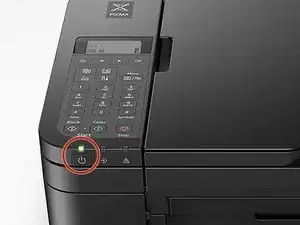
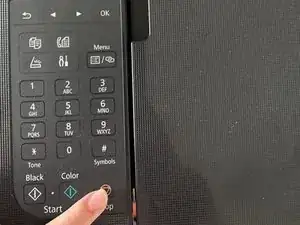
    • Appuyez sur Stop pour annuler le travail d'impression.

  2. W5DP5ebFS5TVsSlc
    W5DP5ebFS5TVsSlc
    FJ2QSTvsWHmmrTde
    • Éteignez l'imprimante.

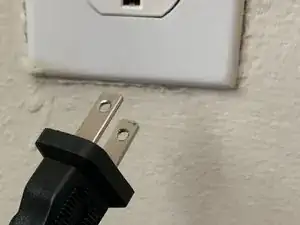
    • Débranchez votre imprimante de la source d'alimentation.

  3. RmX1Z333LDixJBqJ
    RmX1Z333LDixJBqJ
    eciCJbSNmqOUNQYQ
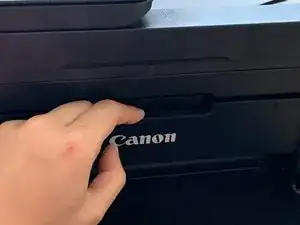
    • Ouvrez le bac avant et vérifiez s'il y a du papier coincé.

    • Si vous ne voyez pas de papier coincé, passez à l'étape 5.

  4. RkDeFPoRAVK5i6iI
    RkDeFPoRAVK5i6iI
    6AfwRv2NWBDCikm6
    • Tirez lentement le papier à l'aide de vos deux mains pour éviter de le déchirer.

    • Si le papier se déchire, ne forcez pas pour le faire sortir. Vous pouvez retirer tout papier restant en accédant au panneau arrière.

    • Si vous avez réussi à retirer tout le papier coincé par l'avant, inutile de continuer ! Continuez simplement à utiliser votre imprimante comme d'habitude.

  5. fJyHN2AugqgRkpSu
    fJyHN2AugqgRkpSu
    GPaXd1dMpojxMJEJ
    o1ZpufXgrDVE3vOi
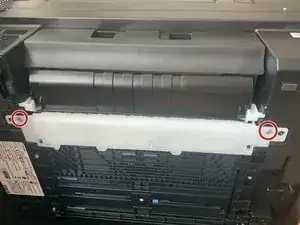
    • Couchez l'imprimante sur son dos pour exposer le panneau inférieur.

    • Retirez les deux vis qui maintiennent le couvercle de l'unité de transport en place avec un tournevis cruciforme n°1.

  6. X5Trj3LPjgZi4nyW
    X5Trj3LPjgZi4nyW
    BsbAINbmmHDRorJV
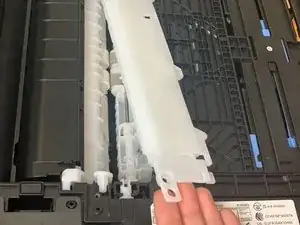
    • Soulevez le capot de l'unité de transport.

    • Soyez doux lorsque vous retirez le couvercle. Vous ne voulez pas l'endommager.

    I’ve been using printer in my business since 1984. Paper jams are inevitable and get stuck snuggly, in my experience. I just had one, in my Canon TR4520. I have NEVER had to turn a printer upside down and use a screw driver to dissamble one to fix a paper jam. The part that needed to be removed is very fragile or “flimsy”. After taking the screws out I had a very difficult time removing the part without breaking it. I have spent approximately 45 minutes … just to remove a jammed paper! NOT user friendly in the slightest way; unacceptable.

    Jerry Rich -

    It helps if you remove the other 4 screws on the bottom black piece to have a little "give".

    James Seitz -

  7. Vi5bBoGH3JmFU3np
    Vi5bBoGH3JmFU3np
    3HLpTx6svxHFbroG
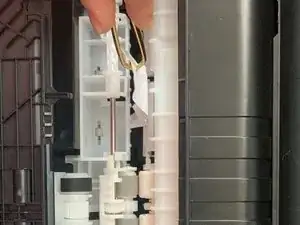
    • Retirez délicatement tout papier restant en utilisant vos doigts ou une pince à épiler.

    I have a Canon TR4520.. This is the second one; the first one was replaced by Canon free of charge about 2 years ago, because it failed. Apparently I neglected to register the new one . Of course now I can’t get any technical support. Step #6 in their suggested trouble shooting was no help because I didn’t want to force the removal of the bottom small plastic cover. It does not release easily as they describe and I did not want to force it. This all started with a paper jam. I removed the jam, but I am still getting yellow button alert. I am not a happy, satisfied customer.

    palmas -

    The comment is in the above box.

    palmas -

    i am constantly getting the paper jam error and never once has there actually been a paper jam it has been over a year that i bought this printer and did not use for the 1st year now that i actually need it it constantly messes up !!!!!!!! once i finally get the error to go away by manually holding paper up so the rollers will grip the paper its like the printer actually causes itself to jam for real but it was never actually jammed to start with it is very annoying !!!!!! other than this i have used this printer alot and dont understand why it has this issue i have the white piece off now and guess what no paper jammed in there !!!!!!!!!!!!!!!!!!!!!!

    Shannon Hyde -

Conclusion

Pour remonter votre appareil, suivez ces instructions dans l'ordre inverse.

Ani Gurtsishvili

Membre depuis le 20/10/20

235 Réputation

7 commentaires

can you show the whole bottom without the tray being in the way? I would really appreciate!

Lex -

it still has the two lights blinking

kresge -

directions did not help, the yellow and ogange till blinks

kresge -

it did not work

kresge -

Papers stuck it won’t budge I’m underneath and it’s gripped it like a vice! Didn’t work where do we go from here this is horrible!

Leah Campbell -

how to return back the black canon cover

Margarette Marasigan -

The transport unit cover won't even come off....I am not going to pry on it...............Just as sure I do it will break. Canon just another junk printer..........

Hazel Johnson -