Introduction

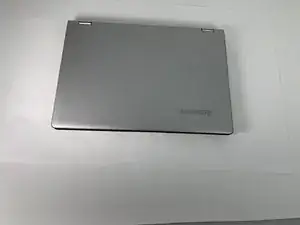
This guide will show how to properly remove and replace the battery component. The safe disconnection of the battery is a key so that you do not shock yourself or any of the other components within the laptop.

  1. BlDRfGUIjGyAHOcJ
    BlDRfGUIjGyAHOcJ
    foZnqDbv2fPHYSj4
    LKPMAu2Epcj6JaII
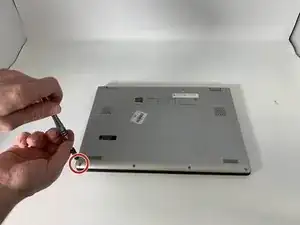
    • Flip the computer over so the bottom is facing up.

    • Remove the ten 6mm screws with a T5 Torx security screwdriver.

  2. 3PMAoQikg6muTIX2
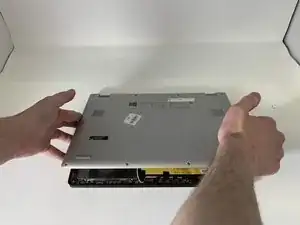
    • Carefully remove the back panel by gently separating the panel from front to back.

    • Take care not to pull any wires or crack the outer shell.

  3. cgltnQ1sTNTXSZEc
    cgltnQ1sTNTXSZEc
    gVpBLJrsoxpATkUZ
    5Y52eeDG3oFEkCvw
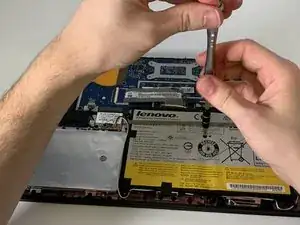
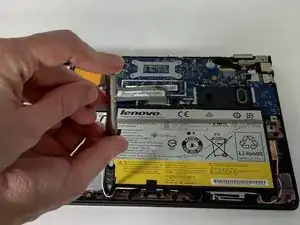
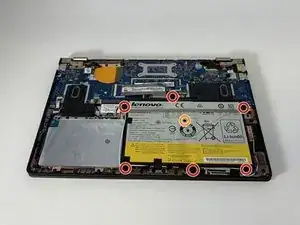
    • Use the Phillips #000 screwdriver to remove the six 3.3 mm screws around the perimeter of the battery.

    • Use the Phillips #000 screwdriver to remove the single 6.75 mm screw from the center of the battery.

  4. XhIjHc5Ucr6ODVOX
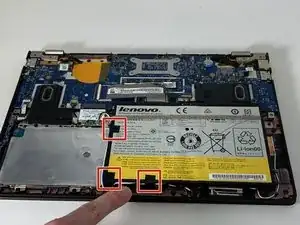
    • Gently remove the three pieces of tape securing the Bluetooth/Wi-Fi antenna.

  5. aPUPqDXyldQOuaXB
    aPUPqDXyldQOuaXB
    wV1WuIEK16GluaOT
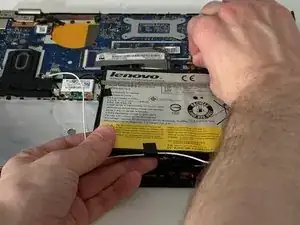
    • Grip the base of the connector with your fingers or pliers, and gently pull the connector straight back towards you to remove it.

    • If possible, do not to pull the connector out by the wires, as this can damage the connector.

  6. iFQiUGEAZSuDXFMg
    iFQiUGEAZSuDXFMg
    OpRNsmcUY3mZm3Br
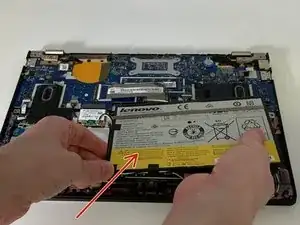
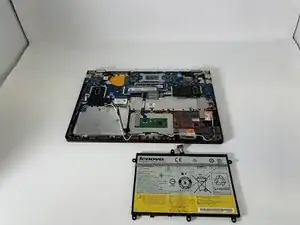
    • Carefully remove the battery from the laptop.

    • Take care not to pull out the Bluetooth antenna while removing the battery.

Conclusion

To reassemble your device, follow these instructions in reverse order.

Joshua Thomas Tyler

Membre depuis le 18/03/19

687 Réputation

0 commentaires