
Introduction
Si votre lentille frontale est cassée ou fonctionne mal, suivez ce guide pour remplacer la lentille. Les outils nécessaires pour ce guide sont un tournevis PH000, un outil d'ouverture en plastique, des spudgers métalliques et un tapis magnétique ou un sac en plastique.


-
-
Avant de démonter une partie quelconque de la caméra, éteignez-la en appuyant sur le bouton ON / OFF. Le bouton ON / OFF est situé sur le dessus de la caméra.
-
-
-
Ouvrez le compartiment situé au bas de la caméra. Faites glisser le commutateur LOCK / OPEN sur le côté OPEN. Localisez la petite languette bleue sur le côté. Tirez-le dans la direction opposée à la batterie. Retirez la batterie et mettez-la de côté.
-
-
-
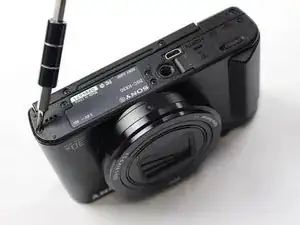
Placez la caméra à l'envers et retirez les vis situées en bas de la caméra à l'aide du tournevis à tête PH000.
-
À la fin de cette étape, il y aura un total de cinq vis Phillips de 0,4 mm. Placez les vis sur un tapis magnétique ou un sac en plastique.
-
Laissez les deux vis qui maintiennent l'écran LCD en place.
-
-
-
Continuez à travailler le long de chaque côté de la caméra jusqu'à ce que toutes les vis soient adressées.
-
En plus des cinq vis du bas, un total de trois autres vis Phillips noires de 0,4 mm se trouvent comme indiqué sur la photo. Placez-les sur le tapis magnétique ou le sac en plastique.
-
-
-
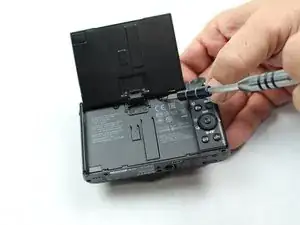
Retournez l'écran LCD vers le haut. Utilisez le tournevis cruciforme PH000 pour retirer les vis situées sous l'écran LCD.
-
Pour cette étape, il y aura trois autres vis Phillips noires de 0,3 mm. Placez-les sur un tapis magnétique ou un sac en plastique.
-
-
-
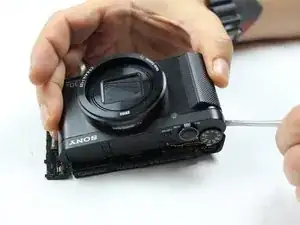
Utilisez d'abord les outils d'ouverture en plastique inclus dans le kit d'outils iFixit. Si la coque / les pièces ne se détachent pas l'une de l'autre, utilisez des spatules métalliques en dernier recours pour desserrer /séparer la coque en plastique de la caméra. Gardez à l'esprit qu'il peut y avoir plus de vis maintenant les pièces ensemble
-
-
-
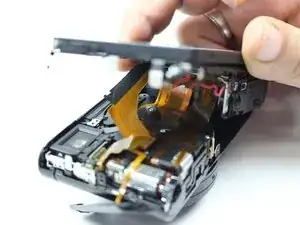
Après avoir desserré les bords en plastique de l'appareil photo, tirez doucement l'écran LCD vers le haut.
-
-
-
Localisez les deux vis argentées de 0,3 mm qui maintiennent la face de l'écran en place. Utilisez le tournevis cruciforme PH000 pour retirer les vis.
-
Placez les deux vis de 0,3 mm sur un tapis magnétique ou un sac en plastique.
-
-
-
Localisez la fine plaque d'argent avec un ruban en plastique doré attaché. Ce ruban maintient l'objectif et le reste de l'appareil photo ensemble.
-
Trouvez les deux vis Phillips argentées de 0,3 mm sur la place argentée. Retirez-les avec un tournevis cruciforme PH000. Placez les deux vis sur un tapis magnétique ou un sac en plastique.
-
-
-
Après avoir retiré les vis et le ruban doré, la lentille frontale sera complètement détachée de la caméra.
-
Remplacez la lentille frontale par une neuve.
-










Pour remonter votre appareil, suivez ces instructions dans l'ordre inverse.

5 commentaires
Excellent guide, but I could not get plastic part off without likely damage, so had to abandon access to sensor dirt.
Follow-up to my earlier comment under Step 10:
A closer look (zoomed in) at the photo illustration for Step 10 provides a helpful view of the back side of the detached lens assembly, which would normally be positioned directly in front of the camera's sensor.
The interface point between these two component parts (lens assembly / sensor) suggests the possibility that a gap could form between them if/when the camera gets bumped, struck, dropped, etc, and thus provide a potential entry point for random dust / lint to migrate inside, which I suspect is what happened to my own HX80 camera. I bought it 4 years ago (2018) and it's served me well until just a few days ago, when the blur-spot issue arose.
The insight into the camera's internal construction shown in Step 10's illustrative photo gives me hope that the dust spec likely causing the blurred spot on my camera's photos and videos is located between the lens assembly & sensor and can be blown away using compressed air, once I manage to open up the camera.
ian_c -
I’m stuck on step 7. The plastic covers on the left side (viewing the camera as you would hold it to take a picture) and on the bottom are separating from the rest of the camera; the left side cover is attached by a thin wire. But I cannot separate the back with the LCD panel from the front with the lens.