
Introduction
Si votre Mac n'est pas connecté à un système de stockage avec macOS installé, ou si votre lecteur de démarrage est corrompu, l'ordinateur affichera une icône de dossier avec point d'interrogation au démarrage, puis il s'éteindra.
Suivez ce tutoriel pour démarrer votre Mac à partir de la fonctionnalité de récupération Internet et accéder aux outils de récupération tels que Utilitaire de disque, Time Machine ou le programme d'installation de macOS.
La fonctionnalité de récupération Internet est disponible uniquement sur les ordinateurs Apple fabriqués après 2009. Si votre ordinateur est sorti en 2010 ou 2011, vous devrez peut-être mettre à jour macOS à la dernière version et/ou effectuer une mise à jour des micrologiciels EFI et SMC pour activer la fonctionnalité de récupération Internet.
-
-
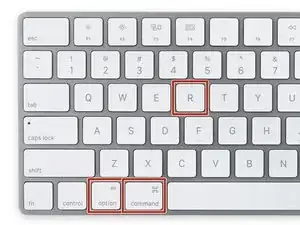
Une fois que l'ordinateur est complètement éteint, appuyez sur le bouton de marche, puis appuyez et maintenez immédiatement la combinaison de touches cmd + option + R.
-
-
-
Quand l'animation du globe tournant apparaît, vous pouvez relâcher les touches.
-
Le globe tournera pendant que la récupération Internet démarre. Si vous n'utilisez pas une connexion internet filaire, un message choisissez un réseau apparaîtra. Utilisez ce menu pour connecter votre ordinateur à un réseau Wi-Fi.
-
-
-
Une fois la connexion réseau établie, une barre de progression apparaîtra sous le globe.
-
Cette étape est susceptible de s'arrêter au bout d'un certain temps. Si vous rencontrez une erreur, réessayez en utilisant une connexion filaire plutôt que le Wi-Fi pour vous connecter à Internet. En fonction de votre modèle, il vous faudra peut-être un adaptateur.
-
-
-
Une fois la récupération Internet chargée, vous verrez s'afficher l'écran de récupération macOS.
-



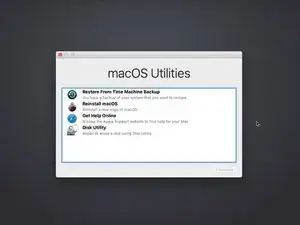
Dans les menus de récupération, vous pouvez restaurer vos données à partir d'une sauvegarde Time Machine, réinstaller macOS, obtenir de l'aide en ligne, et utiliser l'Utilitaire de disque pour formater ou diagnostiquer des problèmes avec des lecteurs de stockage connectés.

40 commentaires
Apparently PowerBook G4 12” does not work for restoral based upon this exercise?
Oh, I’m so sorry! I forgot to specify: internet recovery mode is only available on newer Apple computers. I’ve updated the intro now, sorry for the confusion!
So a mid 2009 computer won’t have internet recovery mode?
I bought a Asgard (seems operates from HongKong) 2TB NVME PCIe M.2 SSD that I installed into mackbook pro 15in mid 2015 with sintech adapter for conversion to MacBook AHCI controller. The disk utility does not show this SSD. Later I installed in same way another Sabrent SSD 2TB it worked fine.
What might have gone wrong in the fist SSD. Could that SSD itself faulty or incompatible? any fixes available?
GBish -
Two main reasons:
- You aren’t pushing deep enough your new ssd drive into the slot. Please reopen your mac, unplug the battery connector and push the new ssd to a fashion position.
- Your are missing the Alt/Option key. Please make the full shorcut: Alt+Shift+R.
I thought this guide is for a completely new SSD, but in this example MacOS appears to already be running. Is the target SSD connected internally via SATA or is this guide for a USB based second SSD that will also run the OS?
In the latter case, is the intent to run internet recovery on the new SSD and then open the machine up and connect it directly, replacing the old disk?
orun bhuiyan -
Sorry for the confusion, Orun! The new SSD guide shares a few steps with the general “boot to internet recovery mode” guide. If you’re installing MacOS to a new drive, you can skip this step. :)
Taylor Dixon -
Just to clarify, I have a late 2009 MacBook 6,1 running El Capitan and will be upgrading to a new SSD. Will Internet recovery work with this computer? The article states “after 2009”. Also I want to upgrade to High Sierra at the same time is there an option to select which OS or how does it decide?
nathan davis -
My current hard drive won’t read. I don’t care about saving anything on the computer at all and had planned on starting fresh. Can i just install the drive then do internet recovery mode or do i still have to have a backup usb with the os preinstaled?
J H -
Hi all,
I recently purchased a Mac mini so that I could have iMessages on my Android phone. It was petty and so that my lesser than iPhone user people could stop complaining about the lack of blue messages.
I ended up updating from the OEM hard drive to an SSD. I obtained a copy of Yosemite from the link below and installed an update to make sure it worked on the original drive.
I had trouble with my Bluetooth keyboard so instead of going through all of that, I ran the installer again but selected my new drive and install the iOS onto the external drive without any issue. I then installed the SSD and it is working so far. Knocking on wood.
Hope this is helpful and I haven't done anything wrong or caused anyone any issues.
nick peloquin -