Introduction
La récupération Internet a un bon nombre d'utilisations utiles. Ce tutoriel vous montre comment utiliser la récupération Internet pour installer une copie fraîche de macOS sur un SSD vierge ou corrompu.
La récupération Internet est seulement disponible sur les ordinateurs portables vendus après 2009. Si votre ordinateur a été commercialisé en 2010 ou 2011, il vous faudra peut-être mettre à jour la dernière version de macOS pour pouvoir activer la réactivation Internet.
-
-
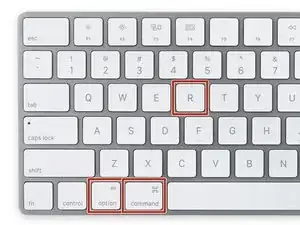
Une fois que l'ordinateur est complètement éteint, appuyez sur le bouton de marche, puis appuyez et maintenez immédiatement la combinaison de touches cmd + option + R.
-
-
-
Quand l'animation du globe tournant apparaît, vous pouvez relâcher les touches.
-
Le globe tournera pendant que la récupération Internet démarre. Si vous n'utilisez pas une connexion internet filaire, un message choisissez un réseau apparaîtra. Utilisez ce menu pour connecter votre ordinateur à un réseau Wi-Fi.
-
-
-
Une fois la connexion réseau établie, une barre de progression apparaîtra sous le globe.
-
Cette étape est susceptible de s'arrêter au bout d'un certain temps. Si vous rencontrez une erreur, réessayez en utilisant une connexion filaire plutôt que le Wi-Fi pour vous connecter à Internet. En fonction de votre modèle, il vous faudra peut-être un adaptateur.
-
-
-
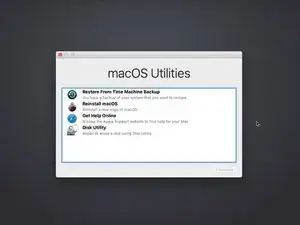
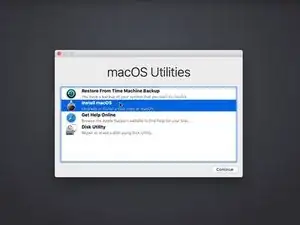
Une fois la récupération Internet chargée, vous verrez s'afficher l'écran de récupération macOS.
-
-
-
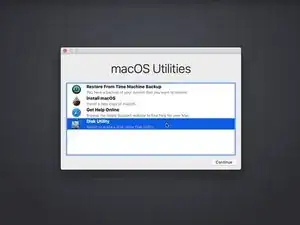
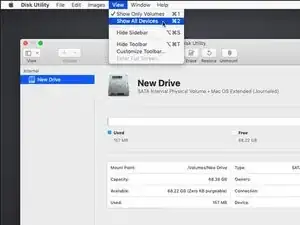
Ouvrez l'Utilitaire de disque dans le menu de récupération, sélectionnez le bouton Effacer en haut de la fenêtre.
-
Donnez un nom à votre disque et assurez-vous qu'il s'agit bien du format OS X étendu (journalisé) ou APFS. S'il existe une option "Schéma", définissez-la sur Table de partition GUID.
-
Une fois que le nouveau disque est formaté, appuyez sur Commande + Q pour sortir de l'Utilitaire de disque et retourner dans le menu de récupération.
-
-
-
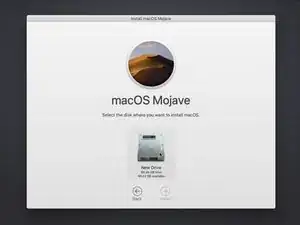
Suivez les indications pour installer macOS en sélectionnant le disque nouvellement formaté comme cible de l'installation.
-




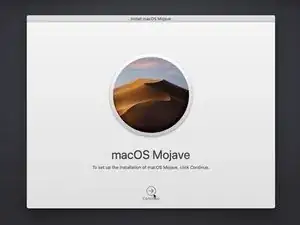

Il se peut que votre ordinateur redémarre plusieurs fois lors de l'installation. Une fois l'installation achevée, vous pouvez consulter le tutoriel de migration pour transférer des données depuis votre ancien disque sur le nouveau.

40 commentaires
Perfect, it is soooooo easy
Cheers
Michael
Hi there, will this work when upgrading an Early 2011 Macbook Pro with a new SSD and RAM? I don’t want to keep or clone any data that I currently have on the computer. I just want to do a clean install of MacOS without transferring over any old files. Thank you!
Fiona B. -
Fiona, the Early 2011 MacBook Pros didn’t ship with internet recovery, but as long as it had a recent-ish version of MacOS before the SSD upgrade the firmware should have updated, which enables internet recovery! This is a great method for installing a fresh copy of MacOS to a new SSD.
Hello. Thank you for the article Taylor. I use a MBP 9,2 and wish to replace my ageing 500GB HDD with 500GB SSD and undergo a clean install of macOS. I’ll follow this article and install by the Internet Recovery method. I have a Time Machine backup, from which I want to restore only certain files and folders pertaining to my studies and work. I also want to restore only Keychain. Can you advise me regarding these or direct me by providing helpful links? Thank you.
I thought this guide is for a completely new SSD, but in this example MacOS appears to already be running. Is the target SSD connected internally via SATA or is this guide for a USB based second SSD that will also run the OS?
In the latter case, is the intent to run internet recovery on the new SSD and then open the machine up and connect it directly, replacing the old disk?
orun bhuiyan -
Sorry for the confusion, Orun! The new SSD guide shares a few steps with the general “boot to internet recovery mode” guide. If you’re installing MacOS to a new drive, you can skip this step. :)
Taylor Dixon -
Just to clarify, I have a late 2009 MacBook 6,1 running El Capitan and will be upgrading to a new SSD. Will Internet recovery work with this computer? The article states “after 2009”. Also I want to upgrade to High Sierra at the same time is there an option to select which OS or how does it decide?
nathan davis -
My current hard drive won’t read. I don’t care about saving anything on the computer at all and had planned on starting fresh. Can i just install the drive then do internet recovery mode or do i still have to have a backup usb with the os preinstaled?
J H -
Hi all,
I recently purchased a Mac mini so that I could have iMessages on my Android phone. It was petty and so that my lesser than iPhone user people could stop complaining about the lack of blue messages.
I ended up updating from the OEM hard drive to an SSD. I obtained a copy of Yosemite from the link below and installed an update to make sure it worked on the original drive.
I had trouble with my Bluetooth keyboard so instead of going through all of that, I ran the installer again but selected my new drive and install the iOS onto the external drive without any issue. I then installed the SSD and it is working so far. Knocking on wood.
Hope this is helpful and I haven't done anything wrong or caused anyone any issues.
nick peloquin -