Introduction
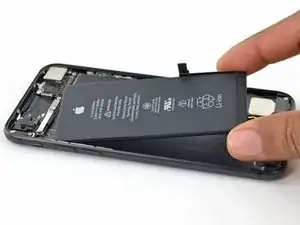
La communauté iFixit vous aide à offrir une seconde vie à votre iPhone 7 grâce à ce tutoriel étape par étape. Vous trouverez toutes les instructions pour changer une une nouvelle batterie. Le changement de batterie iPhone 7 est souvent un passage obligatoire après plusieurs années d'utilisation. Elle perd en capacité et l'autonomie faiblit jusqu'à devenir véritablement gênante. Mais ce tuto vous permet de savoir quand et comment changer la batterie iPhone 7 pour surmonter les troubles de charge, les redémarrages impromptus ou bien rallumer un téléphone en décharge profonde depuis plusieurs mois. Changer sa batterie iPhone 7 évite de laisser à l'abandon son téléphone dans la mesure où il y a malheureusement encore des difficultés pour recycler les appareils électroniques entiers. Avec ce changement batterie iPhone 7, vous faites un geste écologique mais également une vraie économie. En plus de nos conseils pour changer sa batterie iPhone 7, iFixit vous propose bien entendu les kits d'outils adaptés aux petites vis présentes au sein de votre smartphone de même que les batteries iPhone 7 indispensables pour finaliser votre sauvetage.
Si votre batterie est gonflée, prenez les précautions appropriées afin de mener à bien votre réparation iPhone 7
Ce tutoriel vous montrera comment retirer l'écran complet afin d'éviter d'endommager les nappes d'écran. Si vous pensez arriver à retirer la batterie iPhone 7 sans endommager les nappes, vous pouvez sauter ces étapes, bien que ça ne soit pas conseillé.
Pour des performances optimales, calibrez votre batterie fraîchement installée : chargez-la jusqu'à 100 % et laissez-la se charger pendant au moins deux heures de plus. Puis utilisez l'iPhone jusqu'à ce qu'il s'éteigne à cause de la batterie faible. Rechargez-le ensuite sans interruption jusqu'à 100 %.
Outils


-
-
Éteignez votre iPhone avant de commencer le démontage.
-
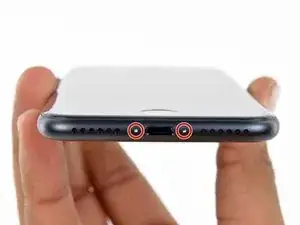
Retirez les deux vis Pentalobe de 3,4 mm qui se situent sur le bord inférieur de l'iPhone.
-
-
-
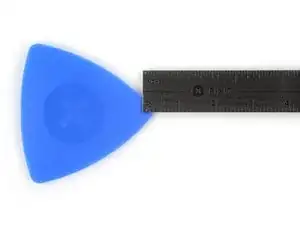
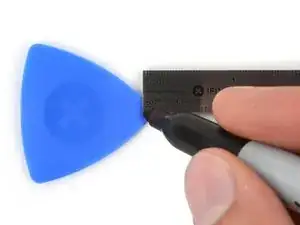
Mesurez 3 mm à partir de la pointe et tracez une ligne sur le médiator avec un marqueur permanent.
-
-
-
Les trois étapes suivantes sont consacrées à la procédure avec l'Anti-Clamp, un outil facilitant les procédures d'ouverture. Si vous n'avez pas d'Anti-Clamp, passez à la procédure alternative deux étapes plus loin.
-
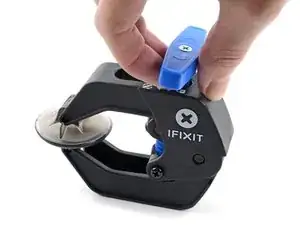
Tirez la poignée bleue vers l'arrière pour débloquer les bras de l'Anti-Clamp.
-
Insérez le bord gauche ou droit de votre iPhone entre les bras de l'Anti-Clamp.
-
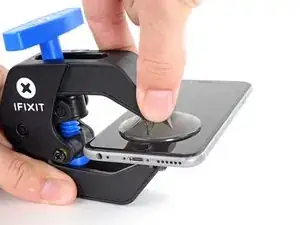
Placez les ventouses près du bord inférieur de l'iPhone, juste au-dessus du bouton home - une à l'avant et une à l'arrière.
-
Pressez les ventouses l'une contre l'autre pour appliquer la succion sur la zone souhaitée.
-
-
-
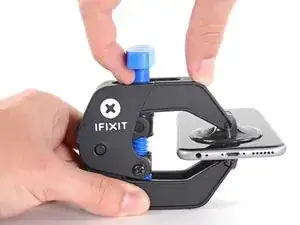
Tirez la poignée bleue vers l'avant pour bloquer les bras.
-
Tournez la poignée dans le sens horaire de 360 degrés ou jusqu'à voir les ventouses commencer à s'étirer.
-
Veillez à ce que les ventouses restent alignées. Si elles commencent à bouger, desserrez légèrement les ventouses et réalignez les bras.
-
-
-
Chauffez un iOpener et passez-le dans les bras de l'Anti-Clamp.
-
Pliez l'iOpener de manière à ce qu'il repose sur le bord inférieur de l'iPhone.
-
Attendez au moins une minute pour permettre à l'adhésif de se décoller et d'ouvrir un interstice.
-
Insérez un médiator dans l'interstice.
-
Passez les trois prochaines étapes.
-
-
-
Chauffer la partie inférieure de l'iPhone aide à ramollir la colle qui fixe l'écran. Il sera alors plus facile d'ouvrir celui-ci.
-
Utilisez un sèche-cheveux ou préparez un iOpener. Posez celui-ci sur la partie inférieure de l'iPhone pendant environ 90 secondes afin de ramollir la couche d'adhésif en dessous.
-
-
-
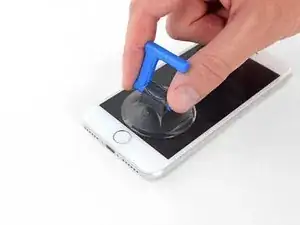
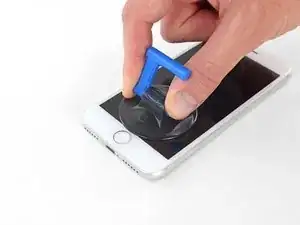
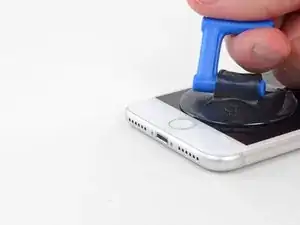
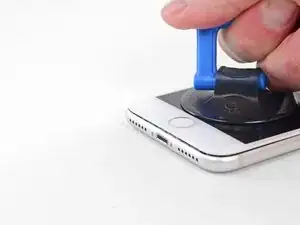
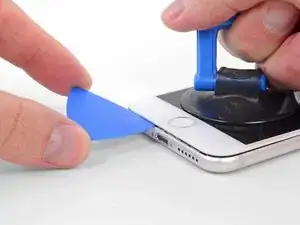
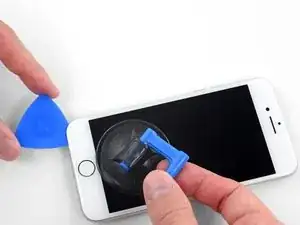
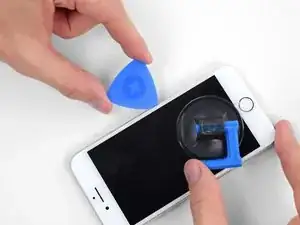
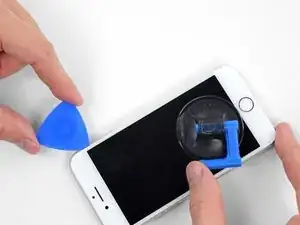
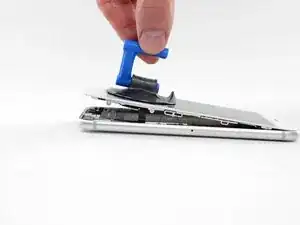
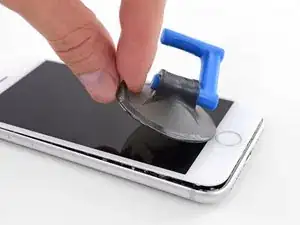
Tirez sur la ventouse de façon ferme et constante pour créer un petit interstice entre l'écran et le châssis.
-
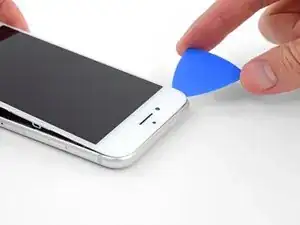
Insérez un médiator dans cet interstice.
-
-
-
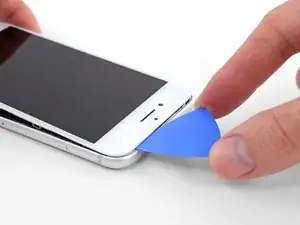
Faites glisser votre médiator le long du côté gauche en commençant par le bord gauche puis en progressant vers les boutons de contrôle du volume et le bouton du silencieux, pour faire céder l'adhésif qui maintient l'écran.
-
Arrêtez-vous juste avant le coin supérieur gauche de l'écran.
-
-
-
Réinsérez votre outil dans le coin inférieur droit de l'iPhone, faites-le glisser le long du coin, puis progressez vers le haut, le long du bord droit du téléphone, pour faire céder l'adhésif.
-
-
-
Tirez délicatement sur la ventouse pour soulever le bord inférieur de l'écran.
-
Tirez sur la petite bosse de la ventouse afin de la décoller du panneau frontal.
-
-
-
Faites glisser un médiator sous l'écran, le long du bord supérieur gauche et du bord supérieur du téléphone, pour faire céder le reste de l'adhésif.
-
-
-
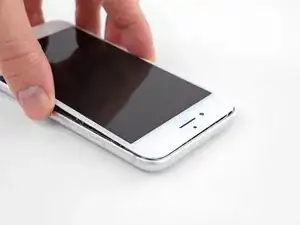
Faites glisser légèrement l'ensemble écran vers le bas (éloignez-le du bord supérieur du téléphone) pour ouvrir les clips le maintenant à la coque arrière.
-
-
-
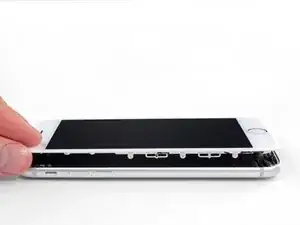
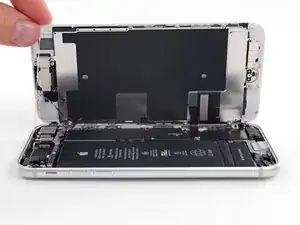
Ouvrez l'iPhone en faisant pivoter l'écran vers le haut en partant du côté gauche, comme s'il s'agissait de la couverture d'un livre.
-
Calez l'écran contre un objet afin qu'il reste bien stable pendant que vous travaillez sur les composants du téléphone.
-
-
-
Enlevez du support du connecteur inférieur les quatre vis tri-point Y000 de longueurs suivantes :
-
Trois vis de 1,2 mm
-
Une vis de 2,4 mm
-
-
-
Utilisez la pointe d'une spatule (spudger) pour détacher le connecteur de la batterie de sa prise sur la carte mère.
-
-
-
Assurez-vous que la batterie est débranchée avant de déconnecter ou reconnecter les nappes de cette étape.
-
Utilisez l'extrémité plate d'un spudger ou un ongle pour débrancher les deux connecteurs inférieurs de l'écran en les tirant tout droit hors de leur prise sur la carte mère.
-
-
-
Retirez les deux vis cruciformes #000 de 1,3 mm fixant le support sur le connecteur de l'ensemble capteur du panneau avant.
-
-
-
Débranchez le connecteur de l'ensemble capteur du panneau avant, de sa prise sur la carte mère.
-
-
-
Retirez les deux vis cruciformes de 1,9 mm fixant le conduit pour le baromètre au boîtier arrière.
-
-
-
A l'aide de l'extrémité plate d'une spatule (spudger), déconnectez le connecteur du Taptic Engine de sa prise sur la carte mère.
-
-
-
Utilisez une pincette aux pointes arrondies pour retirer l'autre bande adhésive sur le bord inférieur de la batterie.
-
-
-
Décollez lentement une des languettes adhésives de la batterie en tirant vers le bas de l'iPhone.
-
Tirez de façon continue tout en maintenant une tension constante sur la bande jusqu'à ce qu'elle sorte de son emplacement entre la batterie et le boîtier arrière. Pour un meilleur résultat, tirez sur la bande à un angle de 60° ou moins.
-
-
-
Répétez l'étape précédente pour la deuxième bande.
-
Si vous avez réussi à retirer les deux bandes adhésives sans problèmes, vous pouvez sauter la prochaine étape.
-
Autrement, si l'une des bandes adhésives s'est déchirée sous la batterie et que vous ne pouviez pas la récupérer, continuez avec l'étape suivante.
-
-
-
Retirez la batterie du boîtier arrière.
-
Insérez la batterie, déconnectez-la et continuez à réassembler votre appareil.
-
Effectuez un redémarrage forcé après le remontage. Ceci peut éviter des soucis et permet de simplifier un dépannage ultérieur éventuel.
-











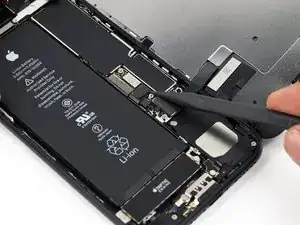
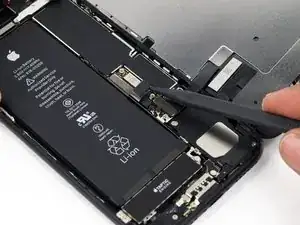
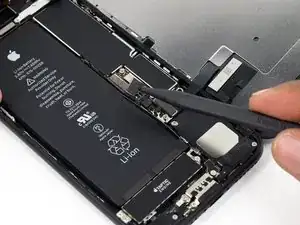


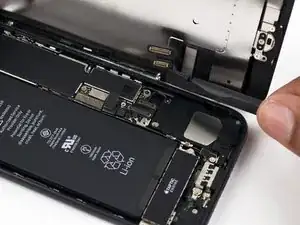
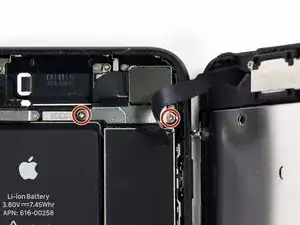
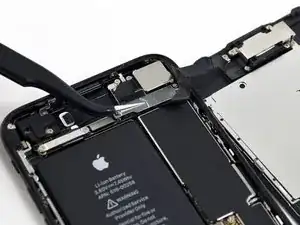


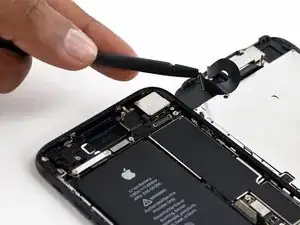


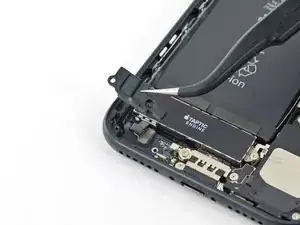

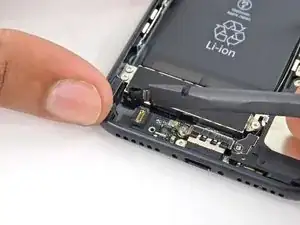
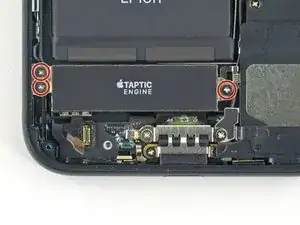
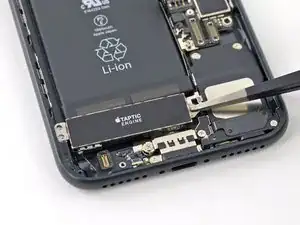
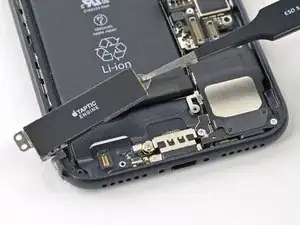


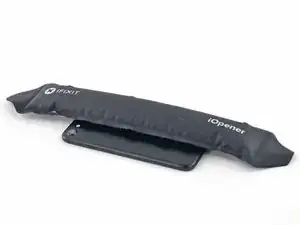

Comparez votre batterie iPhone 7 de rechange à la pièce d'origine. Vous devez éventuellement transférer des composants ou retirer des films de protection de la nouvelle pièce avant de l'installer.
Pour remonter votre appareil, suivez ces instructions en sens inverse.
Apportez vos déchets électroniques à un centre de recyclage.
La réparation iPhone 7 ne s'est pas déroulée comme prévu ? Consultez notre forum de réponses pour obtenir de l'aide au diagnostic. iFixit regroupe la plus grande communauté de réparation iPhone 7 et autre, du monde ! N'hésitez donc pas à poser vos questions pour savoir comment changer la batterie iPhone 7 et lever les doutes qui pourraient encore vous hanter.

120 commentaires
Does this effectively negate the waterproof feature of the new iPhones?
Tubby -
yes , unless it is sealed back with new waterproof tape, which almost no one has yet
Atronx -
No you can buy the replacement. See the above guide for a link on how to do that and iFixIt sells them. Recommend buying more than one because installation is tricky - must get it aligned perfectly though the spluger and pointy tweezers can help reposition minor slipups.
The back adhesive is available on ifixit. So you can make it water proof-ish again.
Recall, an original iPhone is far from waterproof after only a month usage.
Guenter -
iPhone 6 take battery off put new one now not changing at all but saying yes but no going up new battery saying all time 6@.all time
ant2101 -
Is there any way to put back the waterproof sealing after changing the battery for iPhone 7? Thanks
I too would like to know this! It's a shame they don't elaborate as such. There is this part here - Display Adhesive iPhone 7 Display Assembly Adhesive which I assume needs to be put on after the screen is taken off but this guide says it's not needed? But for a screen repair it is? Does it get placed on the phone housing or screen? Thanks
blitzn -
Yep, we have a guide for replacing the seal (display adhesive) now. I don't know how waterproof the seal will be afterward, but I think it's worth doing regardless.
Most of the adhesives that are being sold are not rated to be waterproof, and are not the geniune OEM brand materials.
Atronx -
Probably too late, but there are many vendors that sell the waterproof seal for iPhone7. Use alchohol and tweezers to remove the old seal and glue, align the new seal and stick it. Compared to the battery change, it’s a breeze.
Yes it is. Have a look at the iPhone Display Adhesive Replacement guide
steinmb -

Can anyone confirm 7/7P's pentalobe screws have a ring of seal near the screw head?
Cooper Chase -
Confirmed, the screws have a black ring seal around the head.
rcheing -
Can’t get the display front
Bernadette Pfeifer -
From personal experience, I highly recommend before doing this procedure or any other, that you do a backup of your phone (preferably local) in case your procedure goes south.
ballina5ny -
I purchased the repair tools with the replacement battery from iFixit. The tools include a screw driver and three heads none were labeled 3.4 mm. I think the one that fit the pentalobe screws was labeled Y000. The guide should identify the screw driver head supplied by the kit not 3.4mm.
Mark Lieberman -
in the iphone 7 replacement battery kit from iFixit, the screwdriver that fits the 3.4 mm pentalobe screws is labeled P2 (and not Y000)
Jan-Tijn Oppermann -
3.4 mm is the height of the screw and is not related to the screw driver code.
Ahmad Vaziri -
the screwdriver PH000 does not work i wasted two screws and now they dont have the 4 cross mark they are now a circle, i buyed it all from Paraguay and it doesnt work, had to assembly back the parts because i got stuck like i mention with some screws, well im just going to send to a professional to install, thanks
Martin Frutos, Nuñez -
The bottom screws are Pentalobe, not Phillips.
Bram Driesen -
Before starting, I would recommend backing up your Iphone’s data just in case.
Jon Moylan -
If you managed to make it to this section, just send the phone into apple for 50 + 6 dollars shipping. The ribbon cables on the screen are designed to break. I can literally twist on the rest of the cable and it won’t fall apart but there is a diagonal section where it snaps. This is the fault of apple and the fault of ifixit for misrepresenting the fragility of the cables.
Ryan Huebert -
Had to reheat it a few times for a minute each with a hairdryer to get the seal to break after pulling and rocking the suction
Cynthia Lamb -
I’m technically challenged. Is there a premier national service who can professionally install a replacement battery got my 7 +?
Richard -
Do the screws come out in total?
YVES THEUGELS -
They may come out or may not. If you loosen as much as you can and they don't come out you should still be able to pry open the bottom. Once you get the screen off you can then push the screws out from the inside.
Anthony Falabella -
Is it the P2 you should use for the bottom??
YVES THEUGELS -
I heated the bottom of the phone with a hairdryer and then used a syringe to put a couple of drops of acetone directly into the bottom two screw holes. I GENTLY pulled on the screen with the suction cup and used the pry tool to GENTLY separate the screen. The sealant is applied around the entire display so be very careful pulling it off so you don’t break the fragile display cables.
Anthony Scaminaci -
At first it was very difficult to open, per instructions. I used a heat/ice pack and nuked it for 1 minute. The pry tool wasn’t working so I carefully used my pocket knife to wedge the cover open. The rest of the procedure went well until I cracked the glass while trying to get the top right corner to pop off. Other than that mistake, all went well. Tip: before setting the new battery, attach the battery connector first and leave enough room for the taptic engine, or better yet, place the taptic engine before adhering the replacement battery. This way you’ll have a small gap between the two, whereas mine barely fit. Good job on hosting the video, Gwendyl.
Klaus Preiss -
I love the fact that the screw bit and shaft are magnetic! I almost lost a screw and found it attached to the magnet.
I used a heat/ice pack and nuked it for 1 minute. At first the display cover was very difficult to open with the pry tool, per instructions. The pry tool wasn’t working so I carefully used the blade of my pocket knife to wedge the cover open. The rest of the procedure went well until I cracked the glass while trying to get the top right corner to pop off. Other than that mistake, all went well. Tip: before setting the new battery, attach the battery connector first and leave enough room for the taptic engine, or better yet, see the taptic engine in place before adhering the replacement battery. This way you’ll have a small gap between the two, whereas mine barely fit because I placed it almost too low.
Good job on hosting the video, Gwendyl.
Klaus Preiss -
I replaced the lightning connector assembly and reassembled. The old one did not 'click' into the cable and had corrosion inside, it needed the cable to be placed in a specific way to charge. The new part - does not recognize that a charger is plugged in at all.
I backtracked the assembly - took it apart, put it back again - and find that every thing on the part works - the mic, speakers, taptic engine.
The original problem with the cable still persists. Any ideas?
H K -