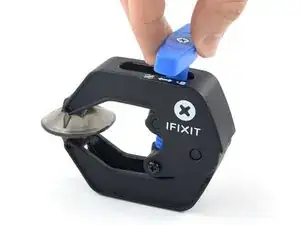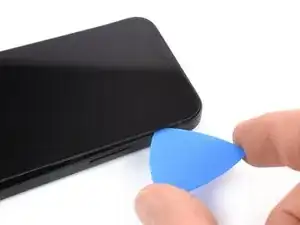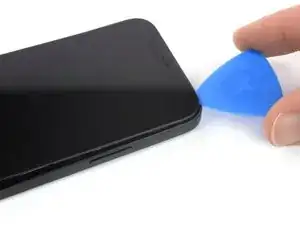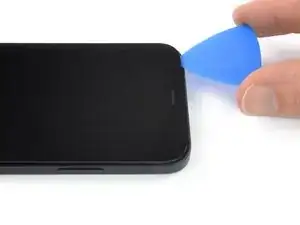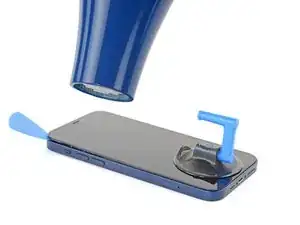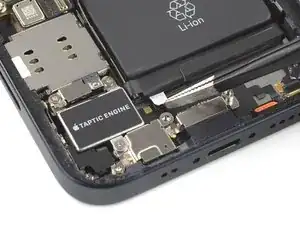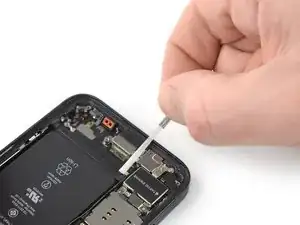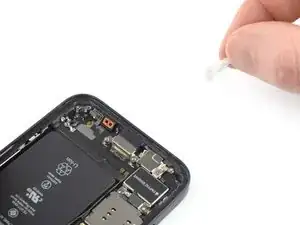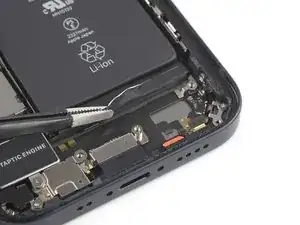
Introduction

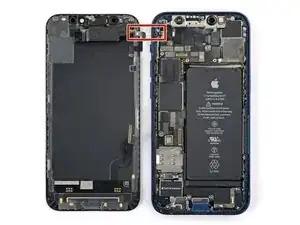
Les batteries d'iPhone sont estimées tenir 80 % de leur charge pendant près de 500 cycles, ce qui équivaut à environ 18–24 mois pour la plupart des utilisateurs. Passé ce délai, peut-être que vous devrez charger plus souvent votre iPhone ou iOS vous préviendra que les performances sont affectées (bref, votre téléphone est plus lent). Remplacez votre batterie avec ce tutoriel et votre iPhone sera à nouveau au top de ses performances.

Si votre batterie est gonflée, prenez les précautions nécessaires.

Remarque : votre iPhone affichera peut-être un avertissement sur “l'authenticité” de la batterie après la réparation, même si vous utilisez une pièce Apple d'origine. Si votre iPhone fonctionne normalement, vous pouvez l'ignorer en toute sécurité.

Lors du remontage, vous aurez besoin d’adhésif de remplacement pour rattacher certains composants.

  1. JVwauFGp15pboki4
    JVwauFGp15pboki4
    6ZrVNyXTV2DYTb13
    • Avant de commencer, déchargez votre iPhone en dessous de 25 %. Une batterie lithium-ion chargée peut prendre feu et/ou exploser si elle est accidentellement percée.

    • Éteignez votre iPhone avant de commencer à le démonter.

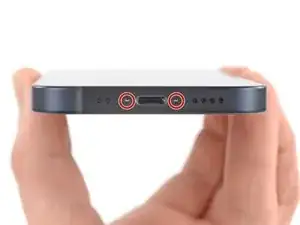
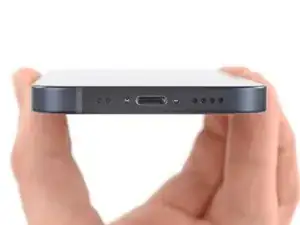
    • Dévissez les deux vis Pentalobe de 6,7 mm en bas de l'iPhone.

    is it oem apple battery, because at some photo shows(Ifixit) and another shows (apple) ... wait your answer?

    karim -

    BEWARE! This screen isn’t the same as older iPhone models’ screens. The iPhone mini 12-screen comes with a thin plastic frame around the screen on its back. Thus, make sure you don’t insert the pick in between the screen and its plastic frame, as you’ll seperate the screen and leave the plastic frame still sitting in the phone’s metal housing (this cost me 100 dollars…). Carefully heat the sides of the metal housing and do not heat directly on the glass, as doing so will potentially loosen the glue from the plastic frame stuck to the screen. My suggestion is that you watch a video of this repair as this step-by-step-guide is undercooked.

    Dan -

    This is an excellent comment. Following this step-by-step guide to the letter will break your screen; it's by far the worst iFixit guide I've seen to date.

    Dormouse -

  2. 6UPwoloGBO4tmVoS
    6UPwoloGBO4tmVoS
    BmSYPJmOy6dbHipF
    3EOdQPAGOmiuhoKU
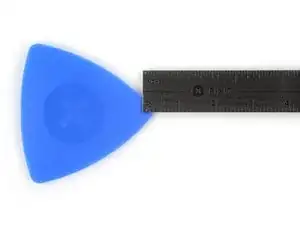
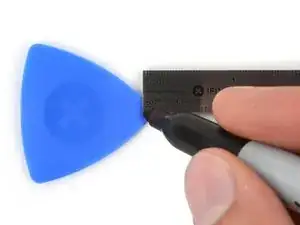
    • S'il est inséré trop loin, un médiator risque d'endommager votre appareil. Suivez cette étape pour tracer un repère sur votre médiator et éviter que l'appareil ne soit endommagé.

    • Mesurez 3 mm à partir de la pointe et tracez une ligne sur le médiator avec un marqueur permanent.

    • Vous pouvez également marquer les autres coins du médiator avec des mesures différentes.

    • Une autre solution consiste à scotcher une pièce de monnaie sur votre médiator, à 3 mm de la pointe.

    Got to step 2 and realized the fix kit doesn't include an opening pick! Looks like a guitar pick, and I have those lying around. Is that expected? Looks like the pick is used in many steps below. There's a little blue crowbar that isn't mentioned in the instructions. Perhaps that replaces the opening pick?

    Sloan Looney -

    Hi! I can't see which guide you were using when writing this comment. Can you reply here with which guide and fix kit you used?

    Clay Eickemeyer -

    I see you posted this in Meta. I hope it's resolved soon! In the meantime, a guitar pick may work well enough for your repair.

    Clay Eickemeyer -

    what fix kit?

    Meow Purr -

    My fix kit didn't include an opening pick either

    WILLIAM HARRIS -

    Make sure you check inside the black boxes after emptying them. My pick was stuck inside one of the boxes.

    AndyF -

    My AliExpress refurbished screen came with a pick that has a coin-like circle that pops out, so no modification was necessary

    Gijs Leegwater -

    the picture shows 3 cm but the description says 3 mm's. Which one is it?

    John Pena -

    That is a misunderstanding. It is a ruler with a scale for cm, it shows 0.3 cm, i.e. 3 mm.

    VauWeh -

    Oh, come ON!

    Big Ed -

    It will ALWAYS be millimeters on a phone, but this step is ridiculous, skip it!

    Leif DeWolf -

    It's not an Ifixit KIT if it doesn't include everything. You'll need to order the opening pic separately. Or head to Walmart like myself and look for guitar pics. Hopefully, this will work just as well.

    Jaleeljb97@icloud.com -

    No pick in mine as well. It’s really not clear that you have to order this separately when ordering an IPhone SE 202/2022 screen repair kit. Is this the case?

    Jackson Castiglione -

    Frustrated, I ordered a compact package where everything was encapsulated. Useless suction tools could not separate the screen. If it is unable to decouple the screen, then why sucking suction tools you have provided.

    Shourob Datta -

    For my kit the triangle pick was stuck inside the box with the screen not with the other tools maybe it's also there for you

    Henry Scheibehenne -

    Y’all are getting far, FAR too detailed with some of this stuff…. Measuring and marking the pick that you won’t actually use to open the device?!? lol that’s kinda funny. Just heat it up, grab a spudger, and the back just pops right off! The iFixit tech need to stick to the KISS method more often, you know KEEP IT SIMPLE STUPID!!! Like l, for reals, I’ve been doing this stuff for YEARS and using iFixit guides regularly and this is just ridiculous at this point!

    Leif DeWolf -

  3. 1CjogrubnNxIGvrd
    1CjogrubnNxIGvrd
    pXY5VoUJ1hFuERqR
    Q1eZoASRSIbOibcj
    • Si votre écran iPhone 12 mini est fissuré, empêchez les fissures de s'aggraver et les éclats de vous blesser en le recouvrant de ruban adhésif.

    • Recouvrez l'écran de bandes de ruban adhésif, qui se chevauchent, jusqu'à ce que toute la surface soit couverte.

    • Portez des lunettes de sécurité pour vous protéger les yeux des éclats de verre tout au long de la réparation iPhone.

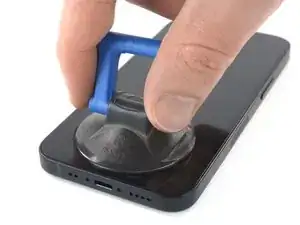
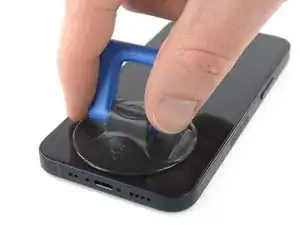
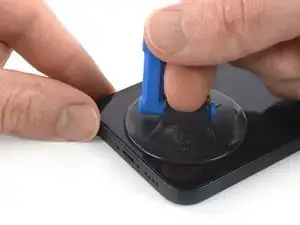
    • Si la ventouse n'adhère pas au cours des étapes suivantes, pliez un morceau de ruban adhésif épais (du ruban adhésif toilé p.e.) pour former une poignée et soulevez l'écran de cette façon.

    • Si tout cela échoue, vous pouvez coller la ventouse à l'écran avec de la superglue.

  4. 5SDAKLhJ2tKixZi2
    5SDAKLhJ2tKixZi2
    ptSQJmqMjcBBW1st
    Rb3dmudH5T5hUrmc
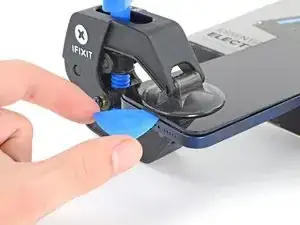
    • Les trois étapes suivantes montrent comment utiliser l'Anti-Clamp, un outil conçu pour faciliter la procédure d'ouverture. Si vous n'utilisez pas l'Anti-Clamp, sautez ces trois étapes pour une autre méthode.

    • Pour des instructions complètes sur l'utilisation de l'Anti-Clamp, suivez ce tutoriel.

    • Tirez la poignée bleue vers l'arrière pour débloquer les bras de l'Anti-Clamp.

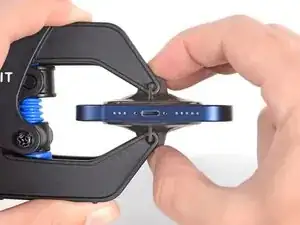
    • Insérez le côté droit ou gauche de votre iPhone entre les bras.

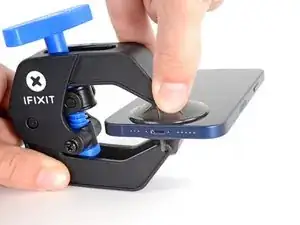
    • Positionnez les ventouses près du bas de l'écran iPhone : une devant, une derrière.

    • Appuyez sur les ventouses pour faire le vide à l'endroit désiré.

    • Si vous trouvez que la surface de votre appareil est trop glissante pour que l'Anti-Clamp y adhère, vous pouvez utiliser du ruban adhésif pour obtenir une surface plus agrippante.

  5. FsT3FA5QaEWxaiEg
    FsT3FA5QaEWxaiEg
    1idtRJHPlsFJBJES
    xf6uNSGb6GPTDJQd
    • Tirez la poignée bleue vers l'avant pour bloquer les bras.

    • Tournez la poignée dans le sens horaire de 360 degrés ou bien jusqu'à voir les ventouses se tendre.

    • Vérifiez que les ventouses restent bien alignées entre elles. Si elles commencent à se décaler, détachez-les pour les réaligner.

  6. DpZCL6axAepLaTCc
    DpZCL6axAepLaTCc
    atEF2NMTghnIiSsM
    ALaITu6uDhQqZvXN
    • Posez votre iPhone sur quelque chose de solide comme un livre à couverture rigide, pour qu'il tienne tout seul à l'horizontale. Ainsi, il sera plus facile de procéder aux étapes suivantes.

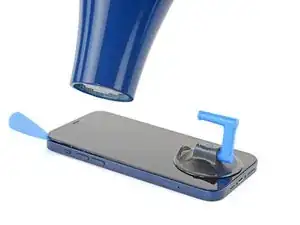
    • Servez-vous d'un sèche-cheveux pour faire chauffer le bord inférieur de l'iPhone. L'écran doit être légèrement trop chaud au toucher.

    • Pour des instructions complètes sur l'utilisation d'un sèche-cheveux, consultez ce tutoriel.

    • Attendez une minute pour donner à l'adhésif le temps de se détendre et d'ouvrir un interstice.

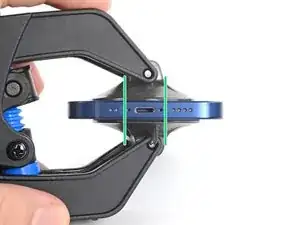
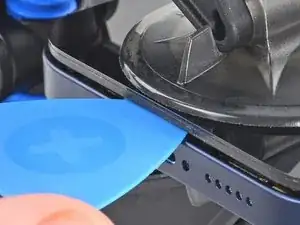
    • Insérez un médiator sous le joint en plastique de l'écran, dès que l'Anti-Clamp a ouvert un interstice suffisant.

    • Si l'interstice ne suffit pas, faites encore chauffer la zone et tournez la poignée d'un quart de tour.

    • Ne tournez jamais de plus d'un quart de tour et attendez une minute à chaque fois. Laissez l'Anti-Clamp et le temps faire le travail à votre place.

    • Passez les trois étapes suivantes.

  7. qIfcdOsDsjmJl2VY
    • Ouvrir l'écran iPhone va endommager ses joints étanches. Pensez à vous procurer des joints de remplacement avant de vous lancer dans une réparation, ou bien faites attention à ne plus exposer votre iPhone à des liquides si vous le remontez sans changer les joints.

    • Chauffer le bord inférieur de l'iPhone va aider à ramollir l'adhésif qui fixe l'écran et donc faciliter l'ouverture.

    • Utilisez un sèche-cheveux ou un pistolet thermique pour chauffer le bord de l'iPhone pendant 90 secondes ou jusqu'à ce que l'écran soit légèrement trop chaud au toucher.

    • Ne pointez jamais votre sèche-cheveux au même endroit pendant un temps prolongé.

    • Si vous avez du mal au cours de la procédure d'ouverture, il est très probable que l'adhésif ait refroidi et durci. Refaites chauffer pour continuer à le ramollir.

    you need to clarify that you're heating the metal frame, not the glass. I gently heated the glass front with a heat gun and proceeded to pull the display apart, destroying it. :-(

    Jim Harger -

  8. MKV3OGqZaxNHEhUc
    MKV3OGqZaxNHEhUc
    hHhDVWStBbPQpiZN

    I would recommend starting with a bottom corner, not the bottom middle. If the adhesive isn't softened enough, you will pull the middle out but the sides will still be stuck on, causing extreme flex to the panel and damage to the panel down the middle (white bars down the middle in a worst case). I did this to my phone.

    Drew Kosir -

  9. nQTSoddbEVTMfZHR
    nQTSoddbEVTMfZHR
    KlrDYepF3DQrMwU5
    jdiUyLciFyBYDGOm
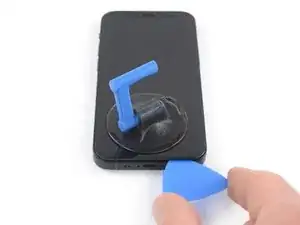
    • Tirez fermement et constamment sur la ventouse pour ouvrir un léger espace entre l'écran et le châssis

    • Insérez un médiator dans l'interstice sous le joint en plastique de l'écran.

    • L'adhésif étanche qui fixe l'écran est très tenace. Ouvrir ce petit espace nécessitera de forcer quelque peu. Si vous avez du mal, chauffez plus et faites jouer l'écran de haut en bas pour faire céder l'adhésif et créer l'espace destiné à votre outil.

    I ended up separating my screen rather than getting under the scren casing.. BE CAREFUL TO MAKE SURE YOU ARE UNDER THE PLASTIC PART - otherwise you just ruin your screen... No mention of this precaution here and as a result, my phone is more broken than when I started

    Tyler Ludwig -

    Hi, I don’t get it. Should the plastic part stay with the display or with the phone?

    Paul -

    Be sure you see two layers: glas and plastic (Step 6, Clamp, last picture). You have to go underneath the plastic frame otherwise you are tearing your displayglas off the frame and destroy your OLED!

    Johnny RS -

    Broke the screen. Too bad. I've done maybe 5 battery replacements before. But this one is very very tight. Got a new phone. :P

    Gilles van Leeuwen -

  10. bv1agNYR2AZSRh4i
    bv1agNYR2AZSRh4i
    QKZUYPEDGXwEWFW2
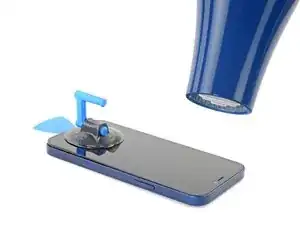
    • Utilisez un sèche-cheveux pour chauffer le bord droit de l'iPhone (celui avec le bouton de marche) pendant 90 secondes ou jusqu'à ce que l'écran soit légèrement trop chaud au toucher.

    The pictures show the left side. I know that the left side is the correct one to heat, but for others it might be confusing. 😊

    Donát Viosz -

    @dviosz You mean the right edge! The picture shows the left edge but the right edge is the correct one to heat. As described in the text next to it. Opening the phone from the left will damage it!

    catchMyException -

    Yeah, sorry, you are right! (tried to make something less confusing and created more confusion by accident… 😃 )

    Donát Viosz -

    THIS ONE HERE (lolz)

    weebeast -

  11. A1oBwCyETfZ3eBwg
    A1oBwCyETfZ3eBwg
    nOJW3MH4vbghr4vJ
    kLNvCWTAVyBPWgjF
    • Faites glisser le médiator le long du coin inférieur droit et du bord droit de l'iPhone, en tranchant l'adhésif qui maintient l'écran en place.

    • N'enfoncez pas votre médiator de plus de 3 mm, car vous risquez d'abîmer les composants internes.

    Be very careful your tool does NOT go in between the screen and the screen frame but rather in between the screen frame and the phone frame. If not you will damage the screen and need a new one. This has happened to MANY people. The screen is attached to the screen frame with an adhesive that can also be accidentally pried apart if not done carefully. This is probably more likely if your tool is too thin, if you dont heat enough, or dont suction and pull enough to create a big enough separation between the screen frame and the phone frame.

    Ezra Gilbert -

    Yes, this happens to me, too. It took a long time until I could remove the screen using a heat gun with a heat gun set to 120°C (after trying first with 90° and 100°). Now the right side of the display shows white stripes and the touch doesn't react. -> New display necessary...

    Bernd Löhr -

  12. jlAuMwmQ6WRMXnpn
    • Utilisez un sèche-cheveux pour chauffer le bord supérieur de l'iPhone pendant 90 secondes ou jusqu'à ce que l'écran soit légèrement trop chaud au toucher.

  13. luVslv2EJDPHjdFY
    luVslv2EJDPHjdFY
    bhGJkCcPB6iwKJWR
    tMyUCZXybbOw6SsY
    • Le bord supérieur de l'écran est fixé à la fois par de la colle et des clips.

    • Insérez votre médiator sous le coin supérieur droit de l'écran.

    • Faites glisser le médiator autour du coin supérieur droit. Vous devriez rencontrer de la résistance en raison des clips.

    • N'enfoncez pas votre médiator de plus de 3 mm, car vous risquez d'abîmer les capteurs frontaux.

    • Pousser délicatement le panneau frontal vers le bas du téléphone facilite quelque peu la manipulation.

    • Parcourez le bord supérieur avec le médiator et finissez de trancher l'adhésif qui fixe l'écran.

  14. bn6svgDdnTZqo1Li
    bn6svgDdnTZqo1Li
    ZM3kLhdMRgUEI2rG
    • Utilisez un sèche-cheveux pour chauffer le bord gauche de l'iPhone pendant 90 secondes ou jusqu'à ce que l'écran soit légèrement trop chaud au toucher.

  15. 2h6ZO1ahtoicpFKF
    • On trouve une nappe fragile le long du bord gauche de votre iPhone. N'y insérez pas votre médiator, car vous risquez de l'endommager.

    There are two cables, one near the top, another lower than the middle on the left side. Further steps show where the second one is, but this picture doesn't show it...

    mesanos -

    Welches Ersatzteil benötige ich, wenn die obere Verbindung gerissen ist?

    Claudia T. -

    If the inside of your phone looks different than these photos (like me) then you may have only removed the top layer of the screen assembly. The bottom layer should pry up easily enough with tweezers.

    macro -
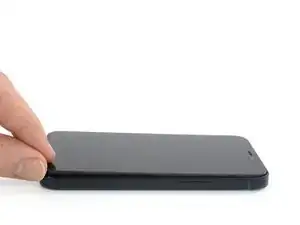
  16. uNtM2YKyVD2BKNwq
    uNtM2YKyVD2BKNwq
    OyXrlHMUOR2dqtME
    • Insérez un second médiator dans le coin inférieur gauche de l'iPhone.

    • Faites pivoter les deux médiators en même temps, jusqu'à ce que les clips du bord gauche se détachent.

    • Faites pivoter en augmentant graduellement la force.

    • Si vous avez de mal, refaites chauffer le bord gauche.

    Don't go from just one corner (like on the right side). I've done that (forgot this step) and broke my screen.

    Donát Viosz -

  17. GKjjmXfhwhaIRErW
    GKjjmXfhwhaIRErW
    2JqHTqMrNqKn2oIC
    Bgygc1XwrnZIXYqP
    • Tournez votre iPhone de façon que son bord droit est en face de vous.

    • Ouvrez l'iPhone en soulevant le côté droit de l'écran comme on ouvre la couverture avant d'un livre.

    • N'essayez pas encore d'enlever complètement l'écran, car il est toujours relié à la carte mère de l'iPhone par plusieurs nappes fragiles.

    • Calez l'écran contre un objet pour qu'il reste ouvert pendant que vous travaillez sur votre téléphone.

    • Lors du remontage, posez l'écran à sa place, alignez les clips le long du bord supérieur et commencez par insérer soigneusement ce bord avant de refermer tout l'écran. Si ce dernier ne s'enclenche pas facilement, vérifiez que les clips sur son périmètre n'ont pas été déformés.

  18. s32v5LyOyuYgWKwK
    s32v5LyOyuYgWKwK
    LZTDcUatrTtkQdMX
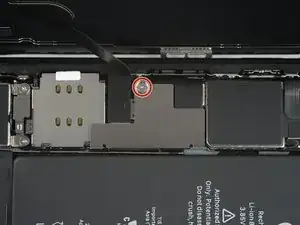
    • Ôtez la vis Y000 de 1,25 mm qui fixe le cache des connecteurs de la batterie et de l'écran.

    • Tout au long de cette réparation, gardez la trace de chacune des vis et veillez à les revisser toutes là où elles étaient auparavant pour éviter d'endommager votre appareil.

    • Lors du remontage, voici venu le bon moment pour allumer votre iPhone et tester si tout fonctionne avant de sceller à nouveau l'écran. Pensez à rééteindre complètement votre iPhone avant de reprendre le remontage.

    hallo, ich sehe in Schritt 17 nur EINE markierte Schraube... (?)

    marrei1964 -

  19. sSx1WV2GJT4GTDvI
    sSx1WV2GJT4GTDvI
    XJvryN6fwJQrk14F
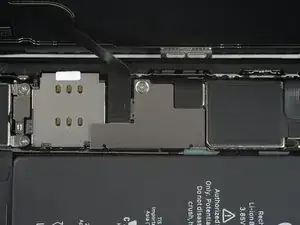
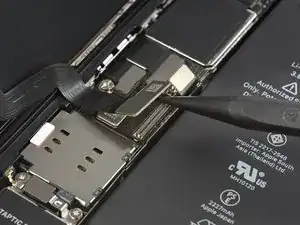
    • Prenez une pincette pour retirer le cache des connecteurs de la batterie et de l'écran.

    • Il y a deux petites charnières le long du bord droit du cache. Veillez à les aligner avec leurs pendants lors du remontage.

  20. lQtM3wSEjFBP4bUT
    lQtM3wSEjFBP4bUT
    cAGmO4Gkg5y1sdJM
    • Prenez une spatule (spudger) ou un ongle propre pour soulever le connecteur de la batterie de sa prise sur la carte mère.

    • Essayez de ne pas abîmer les joints en silicone noir qui entourent cette connexion et d'autres sur la carte mère. Ils assurent une protection supplémentaire contre l'intrusion d'eau et de poussière.

    • Repliez légèrement le connecteur par rapport à la carte mère pour l'empêcher de faire accidentellement contact avec la prise et d'alimenter le téléphone pendant que vous effectuez votre réparation.

  21. Bg2WOTycx6pQSryg
    Bg2WOTycx6pQSryg
    IMpe3jXIrjPmFpZ3
    • Servez-vous d'une spatule ou d'un ongle pour débrancher le connecteur de la nappe du panneau OLED de sa prise sur la carte mère.

    • Pour rattacher un connecteur à emboîter comme celui-ci, alignez-le soigneusement et appuyez d'un côté jusqu'à ce qu'il s'emboîte, puis recommencez de l'autre côté. N'appuyez pas au milieu. Si le connecteur n'est pas aligné correctement, les broches risquent de se déformer et de causer des dégâts irréversibles.

  22. nPYF4uJRS6rlvqj5
    nPYF4uJRS6rlvqj5
    CvgjiiCJADpTTDXb
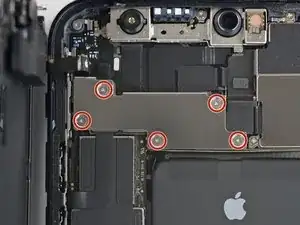
    • Enlevez les cinq vis Y000 de 1 mm qui fixent le cache de l'ensemble capteurs frontaux.

    There is an error here. There are different screws. 2 large and 3 small.

    zeidin09 -

    what 3 are the small ones? I don't know anymore

    Thomas Klep -

    in case anyone else reads this, the 3 small ones screw directly onto the board. the two longer ones screw into standoffs (the two top screws, based on the picture above)

    Skyejobs -

  23. uQjgeWT2KXfFZYOA
    uQjgeWT2KXfFZYOA
    OTkQXcHJLAQwguIy
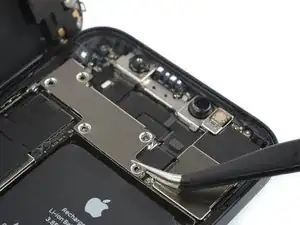
    • Prenez une pincette pour ôter le cache de l'ensemble capteurs frontaux.

  24. GZpFOHpLepHvKBKQ
    GZpFOHpLepHvKBKQ
    bRxWP1dlhidDyEDy
    • Prenez la pointe d'une spatule ou un ongle propre pour débrancher la nappe de l'ensemble capteurs frontaux.

  25. 6WvMQVuRTVALGms5
  26. pYZMIXpWMncYTXB2
    pYZMIXpWMncYTXB2
    1Lb14GBcFCcbjEGV
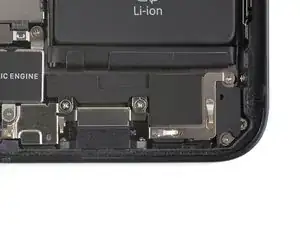
    • Dévissez les quatre vis cruciformes de 1,5 mm de long qui fixent le haut-parleur.

  27. ZY4plW2TuMj4XZbT
    ZY4plW2TuMj4XZbT
    DMnyDZUBsRcu4B16
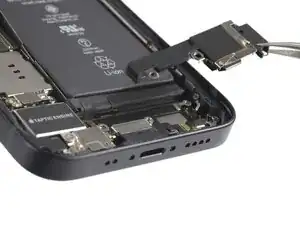
    • Prenez une pincette pour ôter le haut-parleur.

  28. IXFdefICht1JmsCX
    IXFdefICht1JmsCX
    aRDFj32xSi2aOrXH
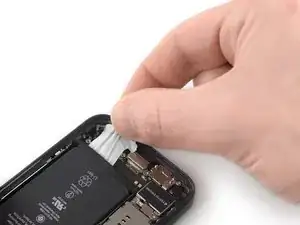
    • Décollez la première languette d'extraction du bord inférieur de la batterie.

    • Faites attention à ne pas percer la batterie avec un outil pointu. Une batterie perforée risque de laisser s'échapper des substances chimiques dangereuses ou de prendre feu.

  29. RbRZYsTTrZ5YU4jR
    RbRZYsTTrZ5YU4jR
    D6sBxcLgi4odOHZU
    CGdtKBeZpeL4esnV
    • Saisissez la languette d'extraction et éloignez-la lentement de la batterie, en l'étirant vers le bas de l'iPhone.

    • Tirez suffisamment pour garder la languette sous tension constante, mais ne forcez pas. Laissez-lui le temps de s'étirer et de se décoller sous la batterie.

    • N'appuyez pas sur la batterie. Tenez fermement les bords de l'iPhone.

    • Veillez à ce que la bande reste plate et ne fasse pas de plis. Essayez de tirer de façon homogène sur toute la largeur de la bande, et non juste au milieu ou sur le côté.

    • Tirez en formant un angle plat de façon que la bande ne reste pas accrochée au bord de la batterie.

    • Si la bande se déchire, essayez de la récupérer avec vos doigts ou une pincette arrondie, puis continuez à tirer. Mais ne faites surtout pas levier sous la batterie.

    • Si une des bandes se déchire sous la batterie et que vous ne pouvez pas la récupérer, occupez-vous des autres bandes, puis consultez les étapes qui suivent.

    Top side of battery have pull tabs too*

    rbhbokka -

  30. Ov15jwZUshuZqlvD
    Ov15jwZUshuZqlvD
    Bqo3LHPAULJXOaLY
    • Saisissez la languette d'extraction plus large et éloignez-la lentement de la batterie, en l'étirant vers le bas de l'iPhone.

  31. m4Dco3nTwYRFXt23
    m4Dco3nTwYRFXt23
    VU14BAv6eAFeWRwP
    iTTTpcM1EvWRFdTF
    • Saisissez la languette d'extraction et éloignez-la lentement de la batterie, en l'étirant vers le bas de l'iPhone.

    • Répétez la procédure précédente pour les deux languettes restantes.

    • Si une bande se déchire et que vous n'arrivez pas à la récupérer sous la batterie, déposez quelques gouttes d'alcool isopropylique à haute concentration (plus de 90 %) sous le bord de la batterie, près de la ou des bandes adhésives déchirées.

    • Attendez environ une minute que la solution alcoolisée ramollisse l'adhésif.

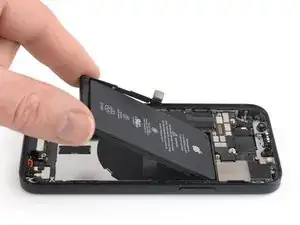
    • Prenez l'extrémité plate d'une spatule pour soulever délicatement la batterie.

    • N'essayez pas de forcer pour retirer la batterie. Si nécessaire, appliquez quelques gouttes supplémentaires d'alcool pour continuer à faire ramollir l'adhésif. Veillez à ni déformer ni percer la batterie avec votre outil.

  32. ErjPBxpvRlydekgR
    ErjPBxpvRlydekgR
    F6vE16AJCBHKNyYq
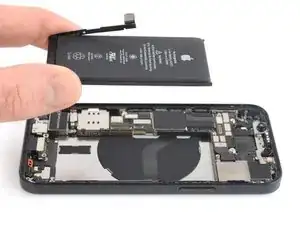
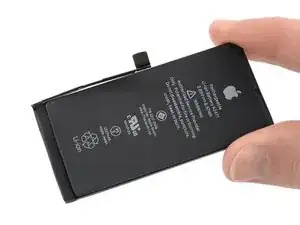
    • Enlevez la batterie.

    • S'il reste de la solution alcoolisée dans le téléphone, essuyez soigneusement ou faites sécher à l'air avant de poser votre batterie neuve.

    • Suivez ce tutoriel pour installer de nouveaux adhésifs de batterie.

    • Effectuez un redémarrage forcé après le remontage. Cela vous permettra d'éviter plusieurs soucis et de simplifier un éventuel diagnostic.

    I just buy this phone 5 months ago..and the battery health is 90%, why? I need to change the battery or not?

    andy terry -

    **before you install the new battery, plug the battery into the port, making it much easier to do than after you adhere the new battery into the phone. I found that the aftermarket battery terminal was longer than the factory batt, which complicated plugging it into the power terminal.

    Ryan Jung -

Conclusion

Si possible, allumez votre téléphone et testez votre réparation avant de poser du nouvel adhésif et de sceller à nouveau votre téléphone.

Fixez la nouvelle batterie avec de l'adhésif prédécoupé ou du ruban adhésif double-face. Afin de la positionner correctement, appliquez le nouvel adhésif sur le téléphone, là où il y avait de l'adhésif auparavant, et non directement sur la batterie. Appuyez fermement sur la nouvelle batterie pour qu’elle adhère bien.

Pour remonter votre appareil, suivez les étapes ci-dessus en sens inverse. Nettoyez les zones d'adhérence avec de l'alcool isopropylique (> 90 %) et posez une nouvelle couche d'adhésif là où c'est nécessaire.

Pour une performance optimale, calibrez votre nouvelle batterie.

Déposez vos déchets électroniques dans un centre de recyclage certifié.

La réparation ne s’est pas déroulée comme prévu ? Consultez nos conseils basiques de diagnostic ou la section iPhone 12 mini de notre Forum pour obtenir de l’aide.

Dominik Schnabelrauch

Membre depuis le 23/11/16

224029 Réputation

17 commentaires

If you replace the battery (even with a first party one) you will need to go to Apple, unfortunately, as is for the new iPhone 13 models.

Roman -

Since iOS 17, I believe, they have a self-registering mechanism. OS will start a wizard to register replaced first-party battery without going to the store

rbhbokka -

I don't think it's stated clearly enough that the display adhesive is VERY strong and you might think you've gotton a big enough gap when sticking in a pick will actually separate the layers of the screen and break it (defintely not speaking from experience). Make sure the phone is totally, thoroughly heated and be very, very careful.

Wesley Halliwell -

+1

Tried it without the clamp for two hours and couldn‘t get it open. With clamp, it was opened within 30 minutes.

Overall battery replacement worked well, the instructions were clear enough to follow along. Would do this again… but with the clamp. ;)

schmurian -

same pried in between layer and then realized after after i separated the bottom corners that needed to go deeper

Simon Milburn -

This comment should be pinned to the top of this article / this scenario pinned in bright red... I've replaced previous iphone screens and it was nothing like this. I also ruined my screen by prying in between the screen layers and not underneath as I could not comprehend just how insanely strong the adhesive is even after many rounds of heating. Give the ~100$ cost of apple repair and the 50$ cost of this kit, i would NOT risk doing this repair, no way.

James Chase -

is it oem apple battery, because at some photo shows(Ifixit) and another shows (apple) ... wait your answer?

karim -

Hi karim,

the batteries that you can buy for iPhones in our shop are not OEM.

Dominik Schnabelrauch -

you should always ask the shop where you go if you will receive a warning message saying the battery was not changed by apple. unless the shop knows how to properly install the right batteries, you will get that message.

nicholas houllis -

I have a problem every time I soldered the cell to the new battery it no longer works could you help me with a tip!!! I've been watching the video more than 100 times I'm interested in learning, but even so the original flex burns

andy terry -

Ich habe bereits einige Akkus getauscht. Aber das Display vom 12 mini ist wirklich heftig verklebt. Ich habe kaputt gemacht.. keine Chance. Durch das erwärmen hat sich das Glas von der Platine gelöst oder ich habe es durchs hebeln getrennt.. Jedenfalls zeigt das Display nichts mehr an. Also nochmal der Hinweis. Überlegt es euch gut! evtl sind 99€ für einen Akkutausch bei Apple besser investiert.

Möhre -

Fantastic instructions, thank you very much. The phone was already partially opened due to the battery being really bloated. So I did not need to use the dedicated tools.

Nino -

Don't do this repair, just don't. The battery adhesive is very strong, but that's not the problem. When you finally get the battery replaced, you will have a permanent badge notification on your settings app that indicates that you are not using an OEM battery. But that's not even the problem. When I did this repair, I was connecting the new battery and sparks and smoke came out, and now my screen has a line across it. Obviously this is user error to an extent, but I have replaced iphone batteries around 15 times, no exageration, and I've been WAY rougher than I was in this case and nothing bad happened. I still have no idea what I did to make this happen, I can guarantee the battery connector only touched the area on the board where it was supposed to connect. I couldn't tell you if this is because it's not an OEM battery, or if Apple is making these phones more fragile on the inside (though I suspect it's a bit of both), but ultimately it's just not worth it do attempt this repair, go to an Apple store.

Zac Soldaat -

This is a solid guide. I was able to replace my battery with the fix kit and these instructions. Unfortunately, I destroyed my display in the process. Probably the same issue that Wesley pointed out here.

I'm guessing I didn't have the adhesive loosened enough along the right-hand side. I was sliding the pick up along that edge, apparently hulked out on it, and a crack shot across the screen. I applied more heat and carried on from there. Once everything was reconnected, I hit the power button and could feel the haptic feedback from the phone booting up, but there was nothing on the display.

Learn from my mistake and be absolutely sure the adhesive is softened enough that you don't have to apply much force to separate the screen from the body (and maybe pick up the Anti-Clamp, I think I would have had a better time with that thing).

Seth Blagg -

I performed this repair twice. First time, I damaged the screen slightly before realizing the thin plastic frame around the screen was not coming up. If you are not sure you are getting the pick under the plastic, then don’t proceed. Take more time to heat and suction. On the second iPhone I pulled out the infrared thermometer, turned my hairdryer to max and kept the iPhone at a nice toasty 140 degrees Fahrenheit while letting the Anti-Clamp do it's work. Still took slightly over 30 minutes to get the screen off. The extra heat also seemed to help keep the screen adhesive stay in good shape and attached to the base. I did not feel the need to replace it which saved me an hour.

Jonathan Flower -

First time success. Display damage can be caused only if you are not patient enough and apply force uneven, screen glass is as strong as the adhesive, if adhesive is warm enough, screen will come out with just constant tension.
Tricky part is to remove all leftovers of adhesive, in my case most of it left inside of the case and needed a lot of alcohol to clean it fully.

rbhbokka -

iFixit, you need to update this tutorial with better warnings. Kinda feel like you glossed over the difficulty to sell your kit.

Like others have said, this is REALLY tough. Do not recommend. Busted my screen — I believe I didn't get the pick under the plastic, so it tore some parts when I opened it. I'd recommend ONLY trying this if you're willing to break your phone.

sjthompsonjr -