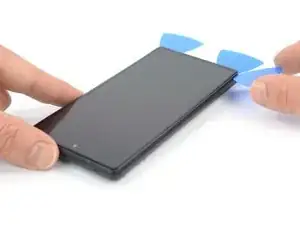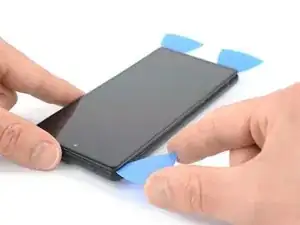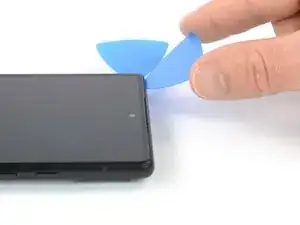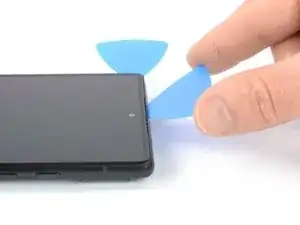
Introduction

Ce tutoriel de réparation provient de l'équipe iFixit et n'a pas été soumis à l'approbation de Google. Pour en savoir plus sur nos tutoriels de réparation, c'est par ici.

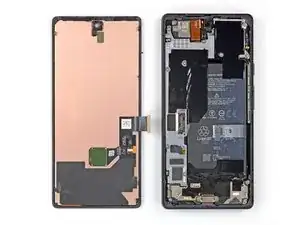
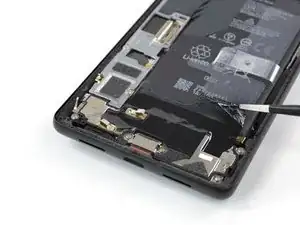
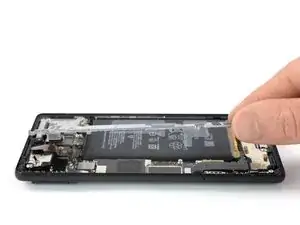
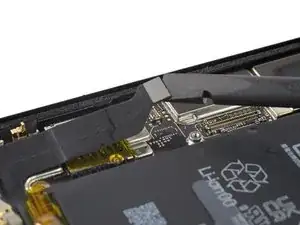
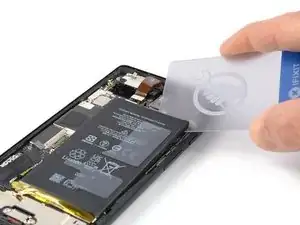
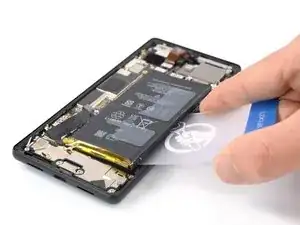
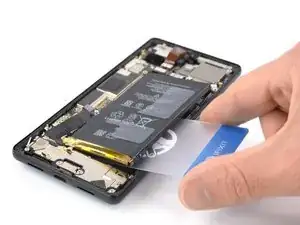
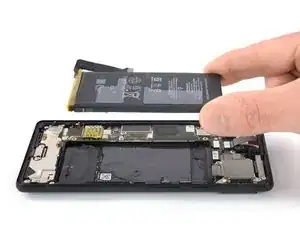
Suivez ce tutoriel pour changer la batterie usée ou morte dans votre Google Pixel 6.

Si votre batterie est gonflée, prenez les précautions appropriées.

Pour votre sécurité, déchargez votre batterie en dessous de 25 % avant de démonter votre téléphone. Cela réduit le risque d'incendie si la batterie est accidentellement endommagée pendant la réparation.

Attention : le Pixel 6 Pro contient des lasers de classe 1. Le démontage peut exposer à des émissions laser infrarouges invisibles.

L'étanchéité après la réparation dépendra de la qualité du remplacement des joints adhésifs, mais votre appareil perdra son indice de protection IP (Ingress Protection) qui évalue l'étanchéité.

Il vous faudra de nouvelles bandes adhésives pour fixer des composants lors du remontage de l'appareil.

  1. NFSVg5QTLwkvZtNV
    NFSVg5QTLwkvZtNV
    5QQ1fPapkTjIBtnZ
    • Laissez votre batterie descendre sous 25 % de charge avant de commencer cette réparation. Une batterie chargée peut prendre feu si elle est endommagée.

    • Éteignez complètement votre téléphone et débranchez tous les câbles.

    If I cannot use my screen, how do I power it off?

    Craig Joseph Van Vliet -

    I was thinking the same. Could let the battery run down.

    Jack Adrian Zappa -

    You can turn the Smartphone off via the boot menue. Push the on/off-button plus the volume up button at the same time. Once the smartphones goes off to restart, hold the volume down button. The smartphone will boot and you can select between recovery mode and other options. You will find the option turn off, which you can select then with the buttons on the side.

    Jonas R. -

  2. JUojptYOCPfWpKwR
    JUojptYOCPfWpKwR
    6EOGcWdcUhaMsXSM
    fNoWRlymkgMqNfDU
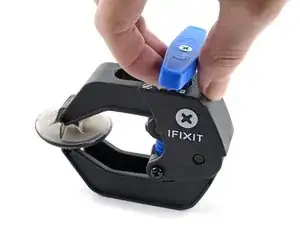
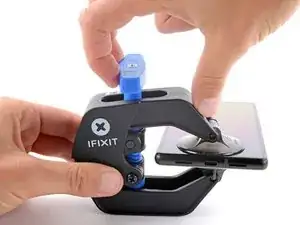
    • Les trois étapes suivantes montrent comment utiliser l’Anti-Clamp, un outil conçu pour faciliter la procédure d'ouverture. Si vous n'utilisez pas l'Anti-Clamp, sautez ces trois étapes pour une autre méthode.

    • Pour des instructions complètes sur l'utilisation de l'Anti-Clamp, suivez ce tutoriel.

    • Si votre écran est fissuré, couvrez-le de ruban adhésif pour faire mieux adhérer la ventouse.

    • Tirez la poignée bleue vers l'arrière pour déverrouiller les bras de l'Anti-Clamp.

    • Positionnez les ventouses en bas du téléphone : une devant, une derrière.

    • Appuyez sur les ventouses pour faire le vide.

    • Si vous trouvez que la surface de votre appareil est trop glissante pour que l'Anti-Clamp y adhère, vous pouvez utiliser du ruban adhésif pour obtenir une surface plus adhérente.

  3. DiLZKhBnBZ2hoHfl
    DiLZKhBnBZ2hoHfl
    cGyPvLXV4aavHKYT
    KigjYLVnPKEuBAtL
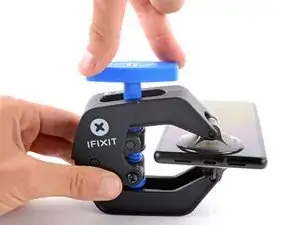
    • Tirez la poignée bleue vers l'avant pour bloquer les bras.

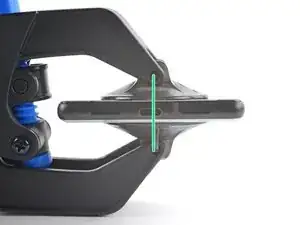
    • Tournez la poignée dans le sens des aiguilles d'une montre, d'un tour ou jusqu'à ce que les ventouses commencent à s'étirer.

    • Faites en sorte que les ventouses restent alignées entre elles. Si elles commencent à glisser, détacher les ventouses légèrement et réalignez les bras.

  4. FbfxUJQfgPIhMlDK
    FbfxUJQfgPIhMlDK
    onVEDYZV3YFNcbJT
    TrHcTZ1qJn4Lhy5O
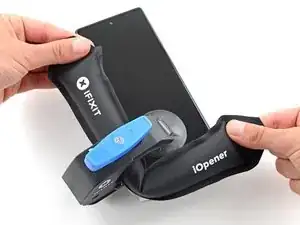
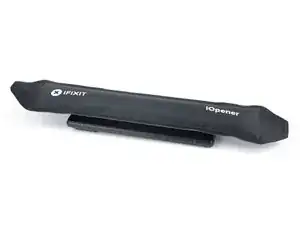
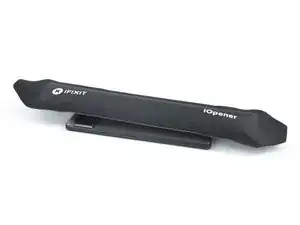
    • Faites chauffer un iOpener et passez-le entre les bras de l'Anti-Clamp.

    • Vous pouvez aussi utiliser un sèche-cheveux ou un pistolet à air chaud, mais une chaleur extrême peut endommager l'écran et/ou la batterie interne, donc soyez prudents.

    • Pliez l'iOpener pour qu'il repose sur le bord inférieur du téléphone.

    • Attendez une minute pour laisser le temps à l'adhésif de se relâcher et de s'écarter.

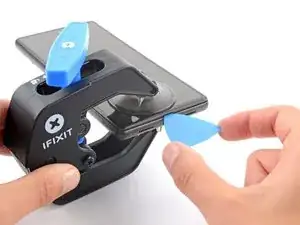
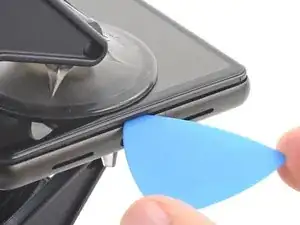
    • Insérez un médiator sous le châssis de l'écran lorsque l'Anti-Clamp a créé un espace suffisant.

    • Si l'Anti-Clamp ne crée pas d'espace suffisant, appliquez davantage de chaleur à la zone et tournez la poignée d'un demi-tour supplémentaire dans le sens horaire.

    • Ne tournez pas la poignée plus d'un demi-tour à la fois et attendez une minute entre chaque demi-tour. Laissez à l'Anti-Clamp le temps de travailler pour vous.

    • Sautez les deux étapes suivantes.

  5. NQKD1XK5SEyZ2pcK
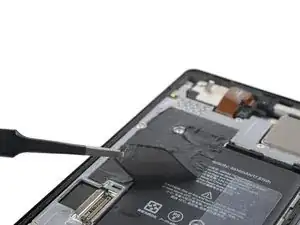
    • Chauffez un iOpener et posez-le sur l'écran pendant au moins trois minutes pour ramollir l'adhésif en dessous.

    • Un sèche-cheveux, un pistolet à air chaud ou une plaque chauffante peuvent également être utilisés, mais veillez à ne pas surchauffer le téléphone.

    what area of the phone do i apply it to?

    middle, edges, diagonal?

    johnathandoe -

    Only on the edges.

    bogdan dobrin -
  6. cYyiIKFogElwfati
    cYyiIKFogElwfati
    UW31YPIdylgY3D2H
    TfSLnFsLfwnF1A2V
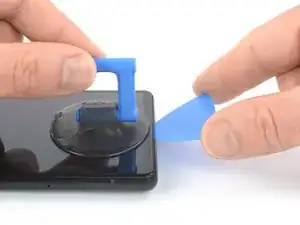
    • Quand l'écran est chaud au toucher, positionnez une ventouse sur le bord inférieur de l'écran.

    • Si l'écran est fissuré, couvrez-le avec une couche de bande adhésive transparente pour permettre à la ventouse de mieux adhérer. Sinon, essayez de la remplacer par du ruban adhésif épais ou bien collez la ventouse avec de la superglue et laissez sécher avant de continuer.

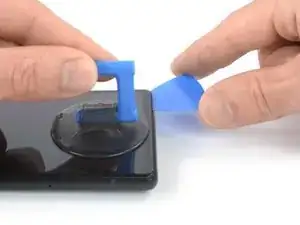
    • Soulevez l'écran avec son châssis de sécurité à l'aide de la ventouse, pour créer un petit interstice entre l'écran et le reste du téléphone.

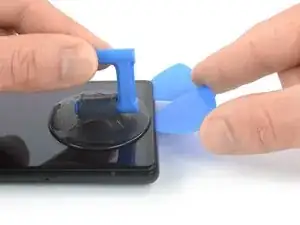
    • Insérez un médiator dans l'interstice entre l'écran et le reste du téléphone.

    • Veillez à insérez votre médiator dans la bonne position, pour éviter de séparer l'écran de son châssis de sécurité au lieu de séparer l'écran du reste du téléphone.

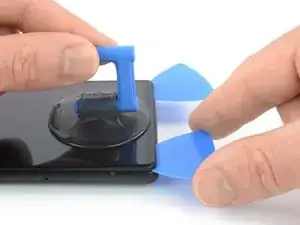
    • Faites glisser le médiator vers le coin inférieur droit de l'écran pour découper l'adhésif.

    • Laissez le médiator en place pour éviter que l'adhésif adhère de nouveau.

  7. VgYxHhOv2ANdZhBj
    VgYxHhOv2ANdZhBj
    T6sO3hSXwWPrGMLR
    • Insérez un deuxième médiator dans le bord inférieur et faites-le glisser vers le coin inférieur gauche de l'écran, pour couper l'adhésif.

    • Laissez le médiator en place pour éviter que l'adhésif adhère de nouveau.

  8. cJwEmdUkAHVMxuGa
    cJwEmdUkAHVMxuGa
    lZvbIkb6yRvLCHNY
    bILZg3nTYhAgEAYD
    • L'écran du Google Pixel 6 est fixé non seulement par de l'adhésif mais aussi par des petits clips en plastique. Si votre médiator bloque lors de la procédure de retrait, vous l'avez inséré trop profondément sous l'écran. N'insérez que la pointe du médiator (3-4 mm) lorsque vous découpez l'adhésif de l'écran.

    • Insérez un troisième médiator sous le coin inférieur gauche de l'écran.

    • Faites glisser le médiator le long du côté gauche de l'écran pour découper l'adhésif.

    • Laissez le médiator dans le coin supérieur gauche pour éviter que l'adhésif adhère de nouveau.

  9. 1My5XLwo1mBpLmTW
    1My5XLwo1mBpLmTW
    WqGUe6d5wnaAVGDy
    DoXGAU6d5H44FI4b
    • S'il devient difficile de couper l'adhésif, il a probablement refroidi. Utilisez votre iOpener ou un pistolet à air chaud pour le réchauffer pendant 1-2 minutes.

    • Lorsque vous coupez près de la caméra frontale, n'insérez que la pointe du médiator (2-3 mm) pour éviter d'endommager ou rayer la caméra.

    • Insérez un quatrième médiator sous le coin supérieur gauche de l'écran.

    • Faites glisser le médiator le long du bord supérieur de l'écran pour découper l'adhésif.

    • Laissez le médiator dans le coin supérieur droit pour éviter que l'adhésif adhère de nouveau.

  10. oc26Ut2TqOXsSApn
    oc26Ut2TqOXsSApn
    GRRyAxb5PErHCLEj
    • Insérez un cinquième médiator et faites-le glisser le long du bord droit du téléphone pour découper l'adhésif restant.

    • N'essayez pas encore de retirer complètement l'écran, il est toujours connecté au reste du téléphone.

  11. RuEUIInW6MLASrru
    RuEUIInW6MLASrru
    banNiywUPAjPnNOY
    r1hEEeZcCNUrSiW3
    • Évitez de tendre la nappe d'écran lors de la procédure suivante.

    • Faites soigneusement pivoter le côté droit de l'écran vers le côté gauche du reste du téléphone, comme si vous ouvriez un livre.

  12. hvjCSMnSLpvKtTLC
    hvjCSMnSLpvKtTLC
    RHNWK5RKHyUOC4Sy
    uD4WvXdPvX2tNSw3
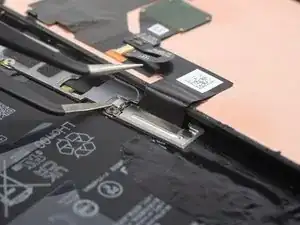
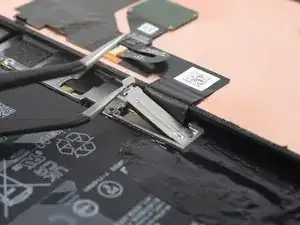
    • Utilisez une pincette pour décrocher et retirer soigneusement le cache métallique qui se trouve sur le connecteur de la nappe d'écran.

    • Mettez ce composant de côté pour le réinstaller pendant le remontage.

    Don't be afraid to bend that clip. I had to bend mine to around 90 degrees.

    Jack Adrian Zappa -

    Thank you very much for the information

    Carlos López (España - Spain) -

    Don't forget to put the bracket back on during reassembly!

    I only realised I had forgotten to reattach it when I was putting the tools away and saw the bracket on the desk... both halves are already glued together so far too late for me. Let's hope it doesn't come loose or I'll be meticulously scraping off all that glue again lol

    Sam Hobbs -

    The absolute same thing happened to me...! I just saw it laying around on the table after cleaning up... Did you experience any issues so far? Not keen on opening it up again eager haha.

    Milkiman -

    My bracket was a little bit stuck. I bent the tab on the left side to 90 degrees, as Jack mentioned. Then I folded the bracket with my finger to the right side and then upwards. When reinstalling, you can bend the bent tab back to its original position.

    Alessio -

  13. Vl25352xbMJOyJf2
    Vl25352xbMJOyJf2
    JlXiF4IOKQTRHBit
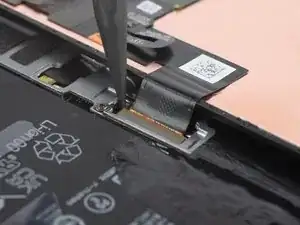
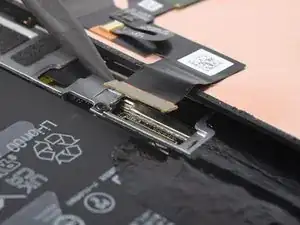
    • À l'aide d'une spatule, déconnectez la nappe d'écran en faisant levier sur son connecteur pour le soulever tout droit hors de sa prise.

  14. DLLMweSo6ZRPrLYE
    • Ôtez l'écran.

    • Pendant le remontage:

    • Contrôlez l'encoche de de la caméra frontale sur l'écran de remplacement et retirez-y tout élément de protection restant.

    • Pensez à réinstaller le cache de la nappe d'écran.

    • C'est le bon moment pour tester votre téléphone avant de le sceller. Connectez temporairement votre écran, allumez votre téléphone et assurez-vous qu'il fonctionne comme prévu. Avant de poursuivre le remontage, éteignez votre téléphone et débranchez l'écran.

    • Suivez ce tutoriel lors du remontage, si vous utilisez des bandes adhésives découpées sur mesure.

    • Suivez ce tutoriel lors du remontage, si vous utilisez une carte adhésive prédécoupée.

    • Si vous installez un nouvel écran, suivez ce tutoriel pour calibrer le lecteur d'empreintes digitales.

    Has the issue with the fingerprint not working after screen replacement been sorted?

    [deleted] -

    I bought the repair kit that included the adhesive & fingerprint module. If that's what you bought as well, you will have to use the google repair tool. https://pixelrepair.withgoogle.com/udfps. I had to manually download the google usb drivers & install them on Windows 11 because the phone wasn't being detected by the pixel repair tool.

    Kwame Bailey -

    Hello, fingerprint does'nt work now.... any tips ? thank !

    willy kedziora -

    I had the screen on my 6A replaced at a U-BreakiFix got home fingerprint reader does not work. It says enrollment not complete. Go to your repair facility. I guess they must have some magic that makes it work again due to security issues

    Lynne Ayers -

    Great directions, would be helpful to have a section on Google Pixel 6 Display Adhesive - Genuine

    Troy O'Connor -

    This guide is clear and easy to follow. The other one where you actually replace the screen and put the new adhesive is much less easy to follow, and takes much more time to complete because you have to remove all traces of the old adhesive. I used GooGone and a 2mm flat head screwdriver as a scraping tool and it worked well.

    The fingerprint reader was not working after the upgrade, but I got it to work by visiting https://pixelrepair.withgoogle.com/udfps and since I'm using Ubuntu, I had to run those two commands:

    sudo usermod -aG plugdev $LOGNAME

    sudo apt-get install android-sdk-platform-tools-common

    And then reboot my computer before my phone could be connected. I rebooted my phone manually after the upgrade and all was working normally. In fact, the new fingerprint sensor works better than the one I got before. The new one is actually usable.

    My Pixel 6 is like new! (except perhaps for the water resistance)

    Francois Lord -

    Great tips! I wish I had thought of Goo Gone. By far the longest part of the procedure was cleaning out the old adhesive, and using alcohol swabs (including a few spares on hand) was slow and not very effective.

    After Chrome on ubuntu was unhappy with recognizing my phone I had to resort to using a Mac, but I would prefer your solution.

    Gary Smith -

    Alternate solution, without installing anything:

    Determine the USB bus and device ID of your phone.

    lsusb

    Assuming, the bus ID is '004', and the device ID is '001', temporary allow access to this USB device for all users.

    chmod 0777 /dev/bus/usb/004/001

    Thomas -

    Easy enough and excellent guide! Thank you!

    Jason -

    The guide was very helpful, but could be improved somewhat. I made the mistake of removing the screen without the bracket & didn't realize until I had attached the adhesive & tried to put the new screen on. So I had to remove the adhesive & the bracket before the new screen would fit, since it has it's own bracket. Another tip would be to include the instructions for getting the fingerprint module to work. Including https://pixelrepair.withgoogle.com/udfps & downloading & installing the google usb driver.

    Kwame Bailey -

    I agree that the guide was good. To be more clear, after the screen is completly installed you have go here https://pixelrepair.withgoogle.com/udfps to fix your fingerprint sensor, but my phone was not recognized by the utility when you plug it in Fast Boot Mode. This requires the usb drivers to be installed on the computer. Go here to download the usb https://developer.android.com/studio/run... Once you have the drivers you will have to go to device manager and you will see your Pixel 6 with a exclamation point on it. Right click on the Pixel 6 and select update drivers. Now browse to the folder that you extracted your drivers to that you just downloaded. This will fix the pixel 6 to be recognized by the utility. Now run the utiltity, and just make sure you reboot your phone when the utiltiy is done and it should be fixed.

    Wedge Fike -

    Just finished a screen replacement on my pixel 6. Everything was pretty straight forward and the instructions and guide was really clear. Scraping all the old tape/glue and making sure I get every last piece out of the phone was the most time consuming part, but totally doable in the end. Using something like goo gone or lighter fluid helps greatly in dissolving the tape residue and the include plastic scraper tool helped scraping every single last piece of goop off the phone.

    Had a little scare with the fingerprint scanner not working even after following the guide and calibrating the fingerprint scanner through google's website. I did it on a win11 computer at first, but thought I would use another computer with win10 to see if that made any difference. Fortunately that worked and my phone is back to 100% working again.

    Lawrence Chan -

    Thank you very much, worked as expected! Had also to recalibrate fingerprint censor AND then reboot the phone manually.

    For Ubuntu, you have to add some udev rules or use some other trick to make Chrome/Chromium access your USB devices.

    Alexis Le -

    Never explains how to snap the bracket of the new phone screen onto the device. Incomplete.

    Orlowski Sal -

  15. yFNa2vExeHGBQt4T
    • Appliquez un iOpener chauffé ou utilisez un pistolet à air chaud pour chauffer la vitre arrière pendant au moins deux minutes, afin de ramollir l'adhésif sous la feuille de graphite qui se trouve sur la batterie.

    • La batterie ne doit pas être chauffée directement. Elle est très sensible à la chaleur et risque de s'enflammer voire exploser.

  16. PnCN1FVoRO1bxL5u
    PnCN1FVoRO1bxL5u
    I2VjnA5GgrwBaQQi
    4oKJM4UwLtMobKLZ
    • Veillez à ni percer ni tordre la batterie avec votre outil, une batterie percée ou tordue peut laisser s'échapper des produits chimiques dangereuses ou s'enflammer voire exploser.

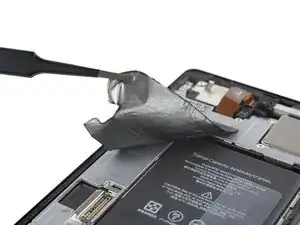
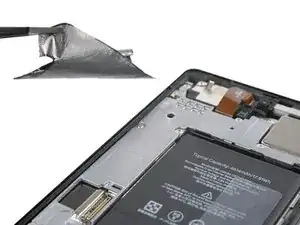
    • Utilisez une pincette arrondie ou un ongle propre pour décoller soigneusement la feuille de graphite noire du bord supérieur de la batterie et de la plaque de protection de la carte mère.

    • Ôtez la feuille de graphite.

  17. JljD6xhMha5NXsJH
    JljD6xhMha5NXsJH
    WEZHNLNrGkJ6NAcF
    TU4pULHMhKcZqOaN
    • Si vous avez des difficultés pour décoller la feuille de graphite, elle a probablement refroidi. Utilisez à nouveau votre iOpener ou votre pistolet à air chaud pour réchauffer la vitre arrière pendant 1-2 minutes.

    • Utilisez une pincette arrondie ou un ongle propre pour décoller soigneusement la feuille de graphite noire du bord gauche de la batterie et de la plaque de protection de la carte mère.

  18. IHBTgQ3ixYM56tl1
    IHBTgQ3ixYM56tl1
    JQs6KqkPvGTelEqI
    qBKWKDGQAaZ4BJjF
    • La feuille de graphite au bord inférieur de la batterie ne doit être retirée que si on remplace la batterie ou le haut-parleur.

    • Utilisez une pincette arrondie ou un ongle propre pour décoller soigneusement la feuille de graphite noire du bord inférieur de la batterie et de l'ensemble du haut-parleur.

    • Ôtez la feuille de graphite.

    There was one tint tiny (1 cm) long graphite(?) piece left over in the battery kit. I didn't see it here in these instructions and I didn't see it on my phone nor did I remove it. Any idea what it's for?

    Ryan Y -

  19. rtUBYhELI5YbGjtI
    • Utilisez un tournevis Torx T3 pour retirer les vis qui fixent le cache de la carte mère :

    • Huit vis de 4,8 mm de long

    • Une vis de 2,4 mm de long

    • Tout au long de la réparation, gardez la trace de chaque vis et assurez-vous que chacune d'elles revienne à son emplacement d'origine.

    I lost the 2.4 mm-long screw (marked orange)! It seems to be the ground connection from the lower board to the upper board. Will the phone work without this screw?

    Changer la batterie du Google Pixel 6

    Pixel -

  20. Ds55Ogm5yURRafTe
    Ds55Ogm5yURRafTe
    QMPC63geVYoYafxM
    iRfNaxAXDCxKGONo
    • Utilisez un tournevis Torx T3 pour retirer les cinq vis de 5,1 mm de long qui fixent le cache de la carte mère.

    • Soulevez soigneusement le cache de la carte mère et ôtez-le.

  21. maKETVpyLCqCVNCR
    maKETVpyLCqCVNCR
    qMytUAeGcJLscFxY
    • Utilisez une spatule pour déconnecter la nappe de la batterie en soulevant son connecteur tout droit hors de sa prise.

    I have a cable that runs over the battery that is not shown here. How to I move this when changing the battery?

    Stephen Dewes -

  22. JqVRC1bmMjurloUX
    JqVRC1bmMjurloUX
    eJDwAAWExfAVtNvP
    • Il y a de l'adhésif en haut et en bas de la batterie mais pas au milieu. La bande en plastique transparent autour de la partie centrale de la batterie n'est pas particulièrement utile lors de la procédure de retrait. N'hésitez pas à l'enlever pour plus de facilité, en décollant son joint adhésif et en la retirant d'en dessous de la batterie.

    • Inclinez votre téléphone à un angle d'environ 45°.

    • Ceci permet de répartir l'alcool isoropylique uniformément à l'étape suivante. Vous pouvez tenir votre téléphone d'une main et appliquer l'alcool avec l'autre, ou bien accrocher votre ventouse à la vitre arrière et utiliser sa poignée comme support pour votre téléphone.

    • Appliquez quelques gouttes d'alcool isoropylique à haute concentration (> 90°) dans l'interstice entre la carte mère et les coins supérieur gauche et inférieur gauche de la batterie.

  23. psSb6gQLSrC6THWR
    psSb6gQLSrC6THWR
    MgdYO4HtHXAHE5LA
    pyCkN4lmGLwVIMAQ
    • Insérez un médiator dans l'interstice entre le bord supérieur de la batterie et la carte mère.

    • Utilisez votre médiator pour faire levier sur la batterie en inclinant votre médiator vers le bas et élargir l'interstice entre la batterie et la carte mère, suffisamment pour pouvoir y insérer une carte en plastique.

  24. isLNLffdLsuDZCFh
    isLNLffdLsuDZCFh
    BMVumKRWvSBEwhxW
    CE6Ky1jKYFZyATDA
    • Si vous n'arrivez pas à retirer la batterie uniquement avec de l'alcool isopropylique à haute concentration, vous pouvez utiliser de la chaleur en plus. Dans ce cas, préparez un iOpener et posez-le sur la vitre arrière pendant au moins deux minutes pour ramollir l'adhésif sous la batterie.

    • Insérez une carte en plastique sous le coin supérieur droit de la batterie.

    • Faites glisser la carte en plastique sous le bord supérieur de la batterie pour découper l'adhésif et pour faire levier.

  25. q25gKJAgDfVbBugn
    q25gKJAgDfVbBugn
    S6QOxeRGdoPFCk1q
    XiGEIf1kTBEEHvd2
    • Faites glisser la carte en plastique le long du bord droit vers le bord inférieur de la batterie pour la séparer du châssis central et découper l'adhésif.

    • Utilisez votre carte en plastique pour faire levier sur la batterie afin de la soulever.

  26. vfeJsy1fsBIxO1ek
    vfeJsy1fsBIxO1ek
    IGMpx2iGXJRJveFx
    aIWTYNZdGDKy4pke
    • Décollez la batterie de l'adhésif restant.

    • Ôtez la batterie.

    • Ne réutilisez jamais une batterie abîmée ou déformée, car c'est dangereux.

    • Fixez la nouvelle batterie avec de l'adhésif prédécoupé ou du ruban adhésif double-face. Afin de la positionner correctement, appliquez le nouvel adhésif sur le téléphone, là où il y avait de l'adhésif auparavant, et non directement sur la batterie. Appuyez fermement sur la nouvelle batterie pour qu’elle adhère bien.

    • Lors du remontage, reconnectez la batterie temporairement à la carte mère pour l'aligner correctement. Déconnectez la batterie une fois qu'elle est bien placée.

    Hallo zusammen,

    zunächst möchte ich mich für die Anleitung bedanken.

    Allerdings habe ich ein paar Kritikpunkte, da die Anleitung meiner Meinung nach zu kurz ist, da ich mir letztendlich ein komplettes Reparaturset für den Batteriewechsel kaufe. Mir fehlen die Montageschritte und weitere Informationen. Es fehlt die Information worauf ich beim Zusammenbau Schritt für Schritt achten muss, ja ein Teil davon ist in dieser Anleitung integriert. Es fehlt aber die Information, wie alte Klebstoffreste am besten entfernt werden. Wie reinige ich die Klebeflächen optimal, um ein gutes Ergebnis zu erzielen. Wie verwende ich die mitgelieferten Schablonen zum Aufkleben der Spacer oder Graphitschichten. Müssen die Oberflächen vor dem Aufkleben der neuen Graphitschichten gereinigt werden? Welche Teile werden mitgeliefert und wofür verwende ich die mitgelieferten Materialien?

    Ich finde eure Arbeit super und wichtig, damit jeder sein Handy selbst reparieren kann und Ressourcen geschont werden.
    MFG
    M.Rebel

    Markus_Rebel -

    I have followed every step until then, but the guide stops here...
    It does not guide how to now mount the new battery.

    I am lost with all the stickers...

    Marc-Olivier Titeux -

    The guide is incomplete and I was left hanging with bunch of stickers and the battery. Why would and how would anyone post a guide for battery replacement with incomplete instructions. I should get a refund for this. Do not recommend buying from this website. Better go to store. Battery replacement there is just 10$ more. Save your time, money and phone.

    Aju Sony -

Conclusion

Si possible, allumez votre appareil et testez votre réparation avant de mettre du nouvel adhésif et de fermer l'appareil.

Comparez votre nouvelle pièce de rechange à la pièce d'origine - il se peut que vous deviez transférer les composants restants ou retirer les dos adhésifs de la nouvelle pièce avant de l'installer.

Pour remonter votre appareil, suivez les étapes ci-dessus dans l'ordre inverse. Lors du remontage, nettoyez les zones d'adhérence avec de l'alcool isopropylique (> 90 %) et posez une nouvelle couche d'adhésif là où c'est nécessaire.

Pour des performances optimales, calibrez votre batterie fraîchement installée après avoir terminé ce tutoriel.

Pour exécuter un test de diagnostic avec l'outil de diagnostic Pixel intégré, cliquez ici.

Déposez vos déchets électroniques dans un centre de recyclage certifié.

La réparation ne s'est pas déroulée comme prévu ? Essayez des solutions de dépannage de base ou demandez de l'aide sur notre Forum.

Dominik Schnabelrauch

Membre depuis le 23/11/16

224029 Réputation

15 commentaires

Something this guide should add is when using the card to pop the battery adhesive, keep as much to the edge in the middle as you can. The qi charger is covered in that graphite like tape and that is easily damaged. You can see that a little bit in the pictures where it was damaged.

If you have the kit, pay attention to the adhesives. The battery already has adhesive attached, the clear plastic pieces are the battery spacers (look at old battery for positioning), and the graphite tapes match the old. Be careful that the plastics already on the battery (the little tab handle thing), the spacers, and the graphite tape don't overlap.

martinfeetofclay -

My original battery started to expand and even lifted up the screen! I had to replace the battery urgently.
I used the genuine Google replacement parts sold through iFixit. Everything worked as expected. I can only recommend using the Pixel Phone Series due to its good repairability and the availability of replacement parts and guides through iFixit. (Availability of Custom ROMs such as GrapheneOS and others is another great bonus :) )
All in all: Magnificent guide for a great device. Thank you guys!

J0hn_Lawrence -

Great guide - than you for your effort Dominik.

My battery had swollen so it was already popping off the screen for me so getting the screen off wasn't so hard :) For me the trickiest bit was getting the battery out - the adhesive was really hard to unstick. Had to do a three or four attempts with the alcohol - take your time and it will come out, don't force it.
Good luck!

Oli -

My battery had also become swollen and the top right of the screen was lifting. Used the iFixit battery replacement kit and the anti-clamp device opener. For the battery removal, I used the isopropyl alcohol, but I also used the included suction cup as a stand and had the heated iOpener on the back of the phone. I think this helped loosen the battery as well.

This guide and tools made this job really easy and not frustrating at all. Screen was undamaged and worked perfectly after the battery was replaced (I did check it before it was all screwed down/resealed).

Thanks for the great guide and kit!

Mike G -

As many others my battery had started to push up on my screen and swell. I've always been a fan of iFixit, but never been able to afford any of their products, however, the Pixel 6 battery replacement kit is worth the purchase, it came with all the parts and tools needed to replace the battery, I didn't need to use the iOpener as the screen was already apart and IPA helped to remove the battery, I purchased the graphite tape separately as it didnt look like it came with it, but it did, I also didn't need to use the battery spacer, as the battery came with them applied, but I dint know how to use them. great tutorial and easy to follow,

ChrisMakesUK -

I followed this guide with the kit and for now everything seems to work flawlessly. The only thing I'd suggest is to move the adhesive cleaning rpocess (screen and frame) right after removing the old battery, as you can easily damage the graphite or find out the spudger won't fit in some places. Also in my case the battery pushed the screen out without the safety frame and I had to ask a local repairman for some glue which he did for free (thank you so much!). So if your screen is separated from the safety frame (step 6), you're going to need some adhesive (not superglue though). The battery adhesive wasn't too hard to remove with the iOpener and picks/spudger but I'd recommend you to get some adhesive remover for the frame/screen, as it's a real pain and isopropyl doesn't help too much (I used 96% and it still was a pain). Otherwise it's been delivered to me one day earlier than expected (yay!), and I really appreciate the design/packaging/entire experience. Thank you iFixit and Dominik!

Marian-Mina Mihai -

Agreed, I found that the adhesive cleaning on the frame was more difficult once the motherboard shield was back in place, because it would block the (fairly wide) spudger.

Leo Huang -

I purchased the Google Pixel 6 Battery - Genuine + Fix Kit and completed the repair following this guide. The guide was clear, and well written with great pictures. It took a bit longer than expected, only because it took a while to clean off the adhesive that secures the screen down. The entire repair took me 2 hours, and this was the first phone repair I have completed. The adhesive for the screen was also a little tricky to reapply. I messed up the placement on my first attempt, and some of the adhesive at the top got stuck and curled up on itself. I pushed the adhesive that was stuck back into place with the spudger, and it seems to have worked well. I completed the last few steps of the repair hastily, and forgot to replace the display cable bracket. The phone functions as intended, and if the screen disconnects, I feel confident in my ability to open the phone up again, secure the cable, and replace the bracket if necessary. Thank you for this guide, and for access to the necessary parts.

James Miele -

Great guide, very thorough. No steps were missed during the disassembly. A few recommendations:

1. While you're working on removing adhesive from the phone body, heat up the iOpener and use it to help soften the adhesive on the back of the screen.

2. Use the spudger without any isopropyl or other remover to scrape as much of the adhesive off. It clings to itself and makes little balls. It makes things much cleaner when you do come back through with chemicals

3. Don't apply isopropyl to the center of the battery when removing. I put too much and it seeped down around the inductive charger. The phone battery is adhered at the upper and lower corners to flat plastic and inbetween these two plastics is where the inductive coil sits.

4. When applying the new screen adhesive, once you've placed it on the case, make sure you secure it well. My adhesive pulled off when I removed the blue protective film and I almost had a similar problem to James Miele.

Geoffrey -

Batterie seems to be a common problem i had that too. Bought a replacement battrie and repaired it. but then the diplay didnt show any picture. i am sure that the display works because there is litteraly nothing on the screen. and i am pretty sure i didnt damage anythin ist there a solution fr the problem?

Johannes PANITZ -

Hi, i'm facing the same issue, black screen after replacing the battery. Did you manage to make it work ?

Quentin Cobbaert -

My battery became swollen so I bought the complete repair kit (parts + tools). It was my first time doing this type of fixing.

The tutorial is very clear with good pictures and easy to follow. It would be great if the tutorial also contains instructions to reassemble the device. The tutorial also doesn't mention all parts included on the kit, but, don't worry, you have all necessary stickers for reassembly.

I didn't use isopropyl alcohol, the iOpener and the plastic card are enough to remove the battery. And to glue the battery in its place, the battery comes with stickers already attached on it, so it's easier than the tutorial said.

In fact, the most complicated part is the removal of the old glue. I just scratched it with a repair tool but it's painful and not efficient. If someone has a good trick for that, it could be great.

Aurélien Guillard -

The guide is incomplete and I was left hanging with bunch of stickers and the battery. Why would and how would anyone post a guide for battery replacement with incomplete instructions. I should get a refund for this. Do not recommend buying from this website. Better go to store. Battery replacement there is just 10$ more. Save your time, money and phone.

Aju Sony -

Musste dringend mein Akku austauschen, weil er sich schon aufgebläht hatte und mein Display anhob. Nur wollte ich nicht zum Techniker gehen und es für +100 Euro reparieren lassen, sondern dachte mir, dass man es selbst auch günstiger schaffen kann. Daraufhin habe ich dieses Tutorial entdeckt und war ebenfalls erfreut, dass man die benötigten Utensilien direkt bestellen konnte. Gesagt, Getan. Habe fürs aus- und einbauen ca. ne Stunde gebraucht. Alles Top und war überglücklich, dass ich keinen schwerwiegenden Fehler gemacht habe! Konnte ebenfalls vieles technische Wissen mitnehmen und würde jederzeit nochmal von dieser Seite gebrauch machen, wenn etwas nicht stimmt:)

Welf Wiedau -